Claude Code Memory System: The Complete Guide to Making Your AI Assistant Remember Your Project
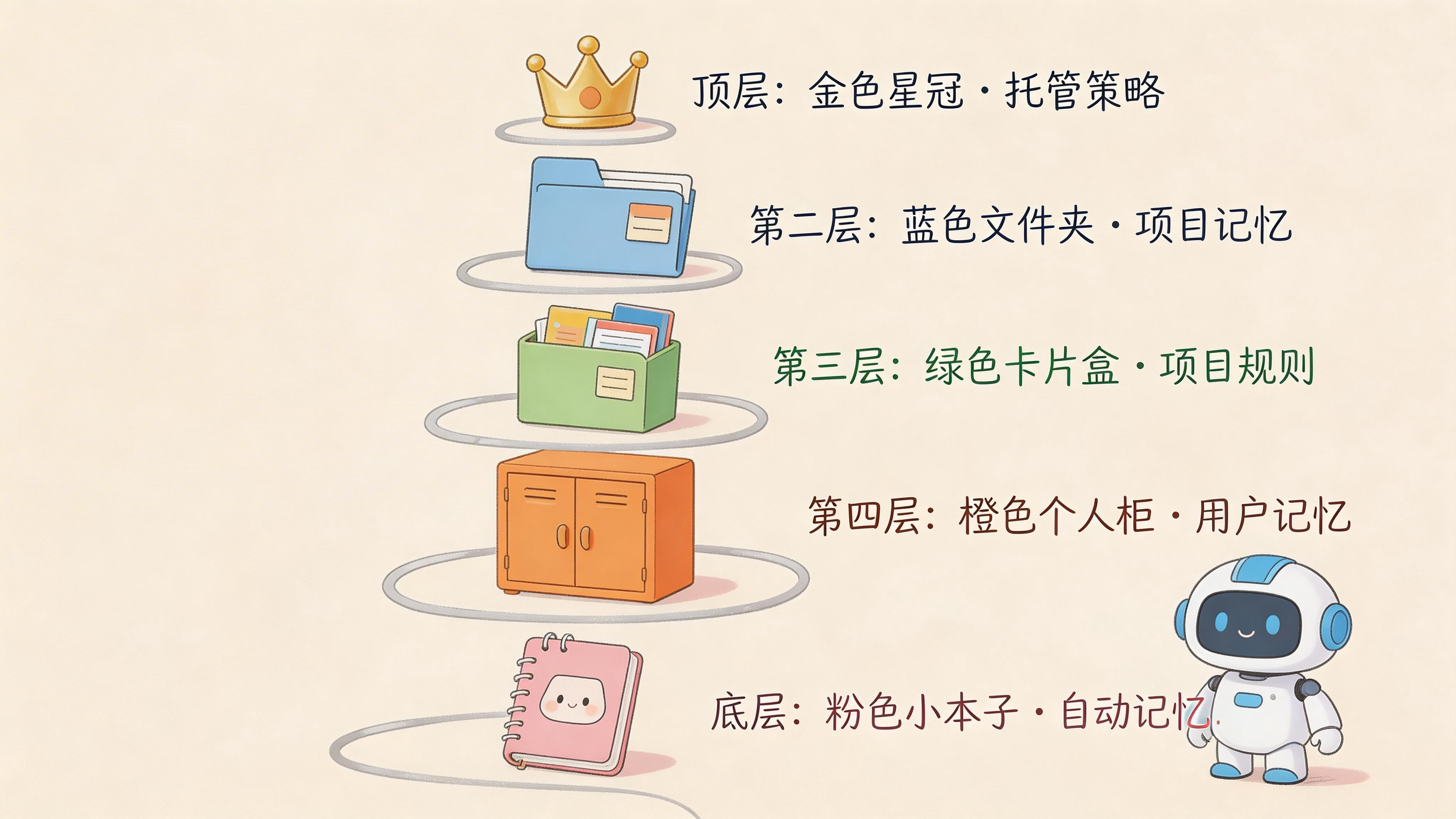
Table of Contents
Claude Code Memory System: The Complete Guide
Ever had this happen? Every time you open a new project, you have to tell Claude from scratch: “Hey, we use pnpm not npm” or “Remember to use TypeScript’s strict mode.” Exhausting, right? It’s like having to rewrite your introduction every time you start at a new company.
The good news: Claude Code comes with a “super memory system” that’s way smarter than you might think. Not only does it remember what you tell it, but it also automatically learns your project habits. Today, let’s dive deep into this memory system.
Two Memory Types: Auto vs Manual
Claude Code has two distinct memory approaches, each serving different purposes.

Auto Memory is like a diligent intern. It automatically records useful information during work: how the project is built, testing conventions, which pitfalls have been encountered. This knowledge isn’t what you told it to remember—it’s what Claude observed and summarized on its own.
CLAUDE.md files are the “employee handbook” you write yourself. Your preferences, project architecture, team standards—all written in these files, and Claude reads them carefully every time. The key difference: auto memory is Claude writing notes to itself, while CLAUDE.md is you writing instructions for Claude.
Both memory types load into Claude’s context at the start of each session. But there’s a catch: auto memory only auto-loads the first 200 lines. This isn’t because Claude has a bad memory—it wants you to put important stuff in CLAUDE.md rather than letting it accumulate a bunch of miscellaneous notes.
Memory Hierarchy: A Company with Strict Ranks
If you’ve set up project memory, user memory, and auto memory simultaneously, which one does Claude listen to? That’s where the memory hierarchy comes in—more specific memories have higher priority, just like company ranks.
| Memory Type | Storage Location | Scope |
|---|---|---|
| Managed Policies | System-level directory | Entire organization |
| Project Memory | ./CLAUDE.md or ./.claude/ | Entire project |
| Project Rules | ./.claude/rules/*.md | By file type |
| User Memory | ~/.claude/CLAUDE.md | All your projects |
| Auto Memory | ~/.claude/projects/project-name/ | Current project |
Here’s an interesting detail: CLAUDE.md files can be placed anywhere in the project directory, and Claude will automatically look upward until it reaches the root. It’s like reporting to work—start with your direct supervisor, then go up the chain. Similarly, if you place a CLAUDE.md in a subdirectory like src/components/, Claude will only read it when working in that directory.
Auto Memory: Claude’s Personal Notebook
Auto memory might be the most overlooked yet valuable feature. As you work in a project longer, Claude automatically records:
- Build commands and testing conventions
- Debugging solutions and approaches
- Project architecture and module relationships
- Your work habits and preferences
These memories live in ~/.claude/projects/<project-name>/memory/.
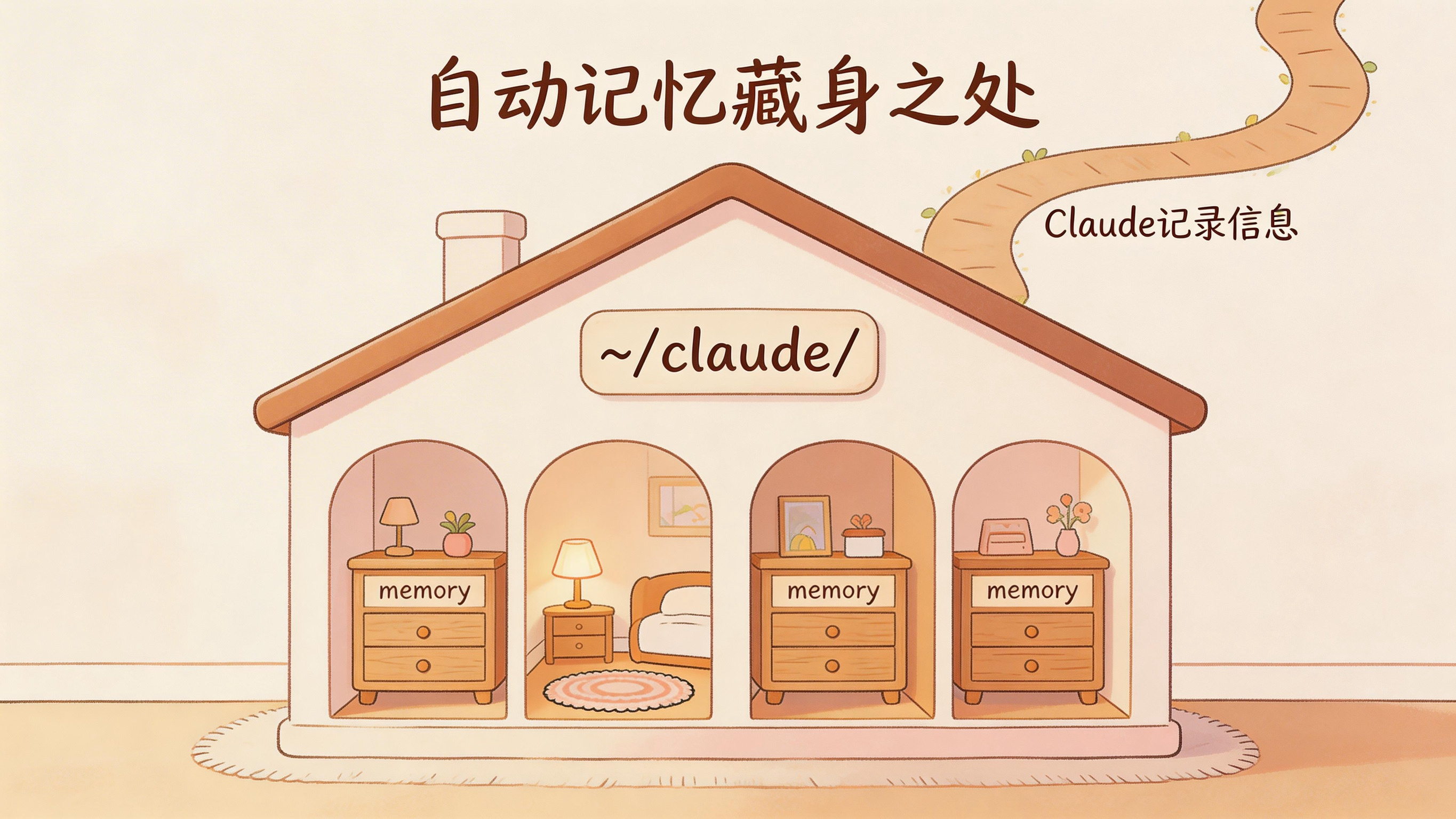
Claude creates a MEMORY.md as the entry point, and might also generate various topic files like debugging.md, api-conventions.md, and so on.
One crucial detail: only the first 200 lines of MEMORY.md get auto-loaded. So if you have important notes, put them at the top, or write them in separate topic files—Claude will read them when needed.
Managing Auto Memory
You can use the /memory command to open the memory file list. This shows not only auto memory but also all CLAUDE.md files. Even better, you can toggle auto memory on/off here. Don’t want Claude taking notes? Just turn it off.
If you want to manually make Claude remember something, just tell it directly. Like: “Remember we use pnpm not npm” or “Remember testing APIs requires a local Redis instance.” It’ll write these into the memory files.
Auto memory can also be controlled via config files. Add "autoMemoryEnabled": false in ~/.claude/settings.json to disable it globally, or put it in ./.claude/settings.json for a single project. The most forceful option: set the environment variable CLAUDE_CODE_DISABLE_AUTO_MEMORY to 1 to completely disable it, overriding any config files.
Advanced CLAUDE.md Tricks
If you think CLAUDE.md is just a simple note file, you’re underestimating it. It has some cool tricks up its sleeve.
Importing Other Files
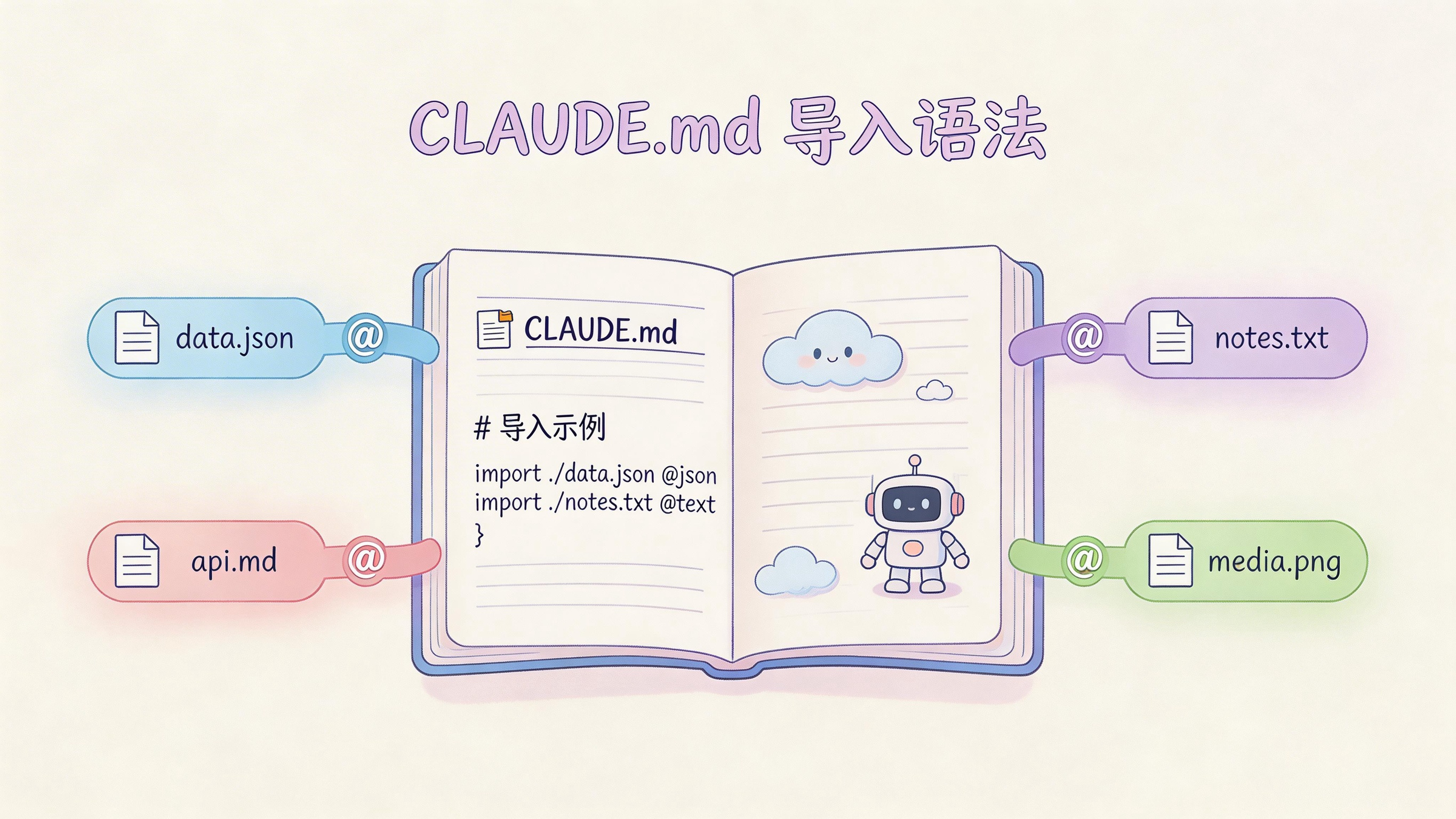
You can use the @path syntax to import other files into a CLAUDE.md:
# Project Overview
Welcome to this project! For more info, see @README and @package.json.

# Development Standards
- Git workflow: @docs/git-workflow.md
Both relative and absolute paths work, with recursive imports supported up to 5 levels deep. Just note that @ inside code blocks won’t be treated as imports—Claude is smart about that.
If you have multiple git worktrees (we’ll talk about this later), each worktree has its own CLAUDE.local.md. If you want to share personal config across all worktrees, you can use home directory imports:
# Personal Preferences
- @~/.claude/my-project-notes.md
Oh, and CLAUDE.local.md has a thoughtful feature: it’s automatically added to .gitignore. This means you can write private project config here without worrying about accidentally committing it to the codebase.
Modular Rules: .claude/rules/
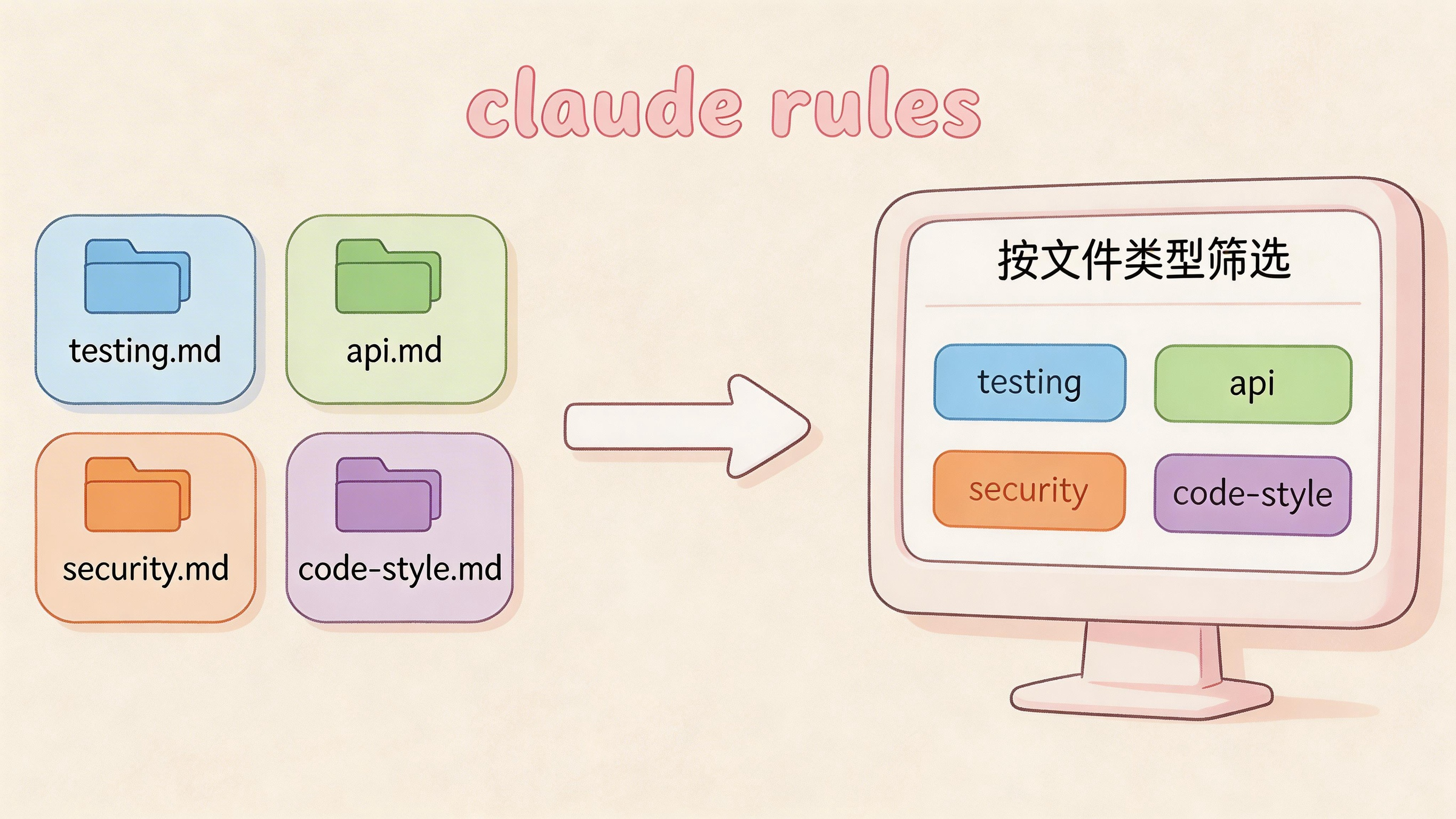
When your project grows and becomes complex, a single CLAUDE.md might not cut it. That’s where the .claude/rules/ directory comes in handy.
Place as many .md files as you want in this directory, and Claude will automatically load them all. You can split by topic: testing standards in testing.md, API design in api.md, security requirements in security.md.
Even cooler: rules can be filtered by file type. Use YAML front matter with a paths field:
---
paths:
  - "src/api/**/*.ts"
---

# API Development Rules

- All endpoints must include input validation
- Use standard error response formats
This rule only applies when processing src/api/**/*.ts files. paths supports standard glob patterns: **/*.ts, src/**/*, *.md, or multiple patterns separated by commas.
Rule files can also be organized into subdirectory structures, or even symlinked to share across projects. If you have common coding standards, put them in one place and ln -s to each project’s rules directory.
Memory for Teams: Organization-Level Management
If you’re a tech lead who wants the entire team to follow a set of standards, no problem—Claude Code supports organization-level memory management.
Place a CLAUDE.md in the system-level directory (macOS: /Library/Application Support/ClaudeCode/CLAUDE.md, Linux: /etc/claude-code/CLAUDE.md), and all developers using that machine will automatically load it. It’s like the company issuing an employee handbook that takes effect from day one.
Of course, this typically needs deployment via configuration management tools (MDM, Ansible, etc.). Can’t manually set them up one by one, right?
Practical Tips
So, how do you make the most of this? Here are some suggestions:
In your project CLAUDE.md, definitely include commonly used commands: build, test, lint. Also write down code style preferences and project-specific architecture patterns. When creating a new project, run /init to have Claude generate a template for you.
Don’t treat auto memory as your primary memory source. Your main memory should be the CLAUDE.md you write. Auto memory is great for those small details you wouldn’t actively remember but Claude needs to know—like “we spent the whole afternoon debugging this bug.”
When should you split rule files? When your CLAUDE.md exceeds 500 lines, or when different modules have very different standards. Frontend and backend testing standards are definitely different—splitting them into separate files makes maintenance easier.
Summary
Claude Code’s memory system is essentially a multi-layered,可持续发展的 learning mechanism. Auto memory lets Claude evolve through work, CLAUDE.md lets you precisely control what it remembers, and modular rules make memory management for large projects organized and tidy.
Master this memory system, and you’ll find Claude increasingly “gets you”—like a colleague who knows your habits and remembers your preferences. That’s a true AI assistant.
So here’s the question: what’s the next thing you want Claude to remember for your next project?
FAQ
Q: Does auto memory leak privacy?
A: Auto memory only stores locally in your ~/.claude/projects/ directory and never sends to any server. You can even delete the entire memory directory anytime—Claude won’t remember anything.
Q: Which is more important, CLAUDE.md or auto memory? A: CLAUDE.md has higher priority than auto memory. If you write conflicting instructions in both places, Claude will prioritize the CLAUDE.md content.
Q: Do multiple git worktrees share memory?
A: No. Each worktree has its own auto memory directory. But if you want to share config, you can use the @~/ import syntax we mentioned earlier.