Ever had this happen: you ask AI to find where a function is defined, and it just dumbly sifts through files one by one, like searching a library without an index system—pure manual labor.
 Figure: With Claude Code 2.0.74’s LSP support, it’s like giving a blind person GPS navigation
Well, things have changed. Claude Code 2.0.74 now natively supports LSP (Language Server Protocol). Simply put: it can now jump to definitions and find references just like you do in VS Code, instead of being that dumb guy who only knows how to grep.
First, what the heck is LSP
LSP (Language Server Protocol) is a protocol created by Microsoft. The core idea is simple: separate “understanding code” from “the editor”. In plain English: think of LSP as an “intelligent navigator”. Whether you’re driving a Toyota or Honda, the navigator can give you directions. Same with code editors—whether you use VS Code, JetBrains, or now Claude Code, this navigator tells you where to turn and where to make a U-turn.
Actually, you use LSP every day without realizing it—the parameter tooltip when you hover over a function, right-click “Go to Definition” jumping straight to the function, those red squiggly lines under errors, autocomplete when you type half a function name—all LSP.
Before Claude Code had native LSP support, it understood code in a pretty primitive way: like holding a magnifying glass reading line by line, searching for string patterns when it hit a function definition. This worked because LLMs have seen tons of code and are good at text patterns. But ultimately, it struggled at one thing: reconstructing from plain text what your IDE already knows.
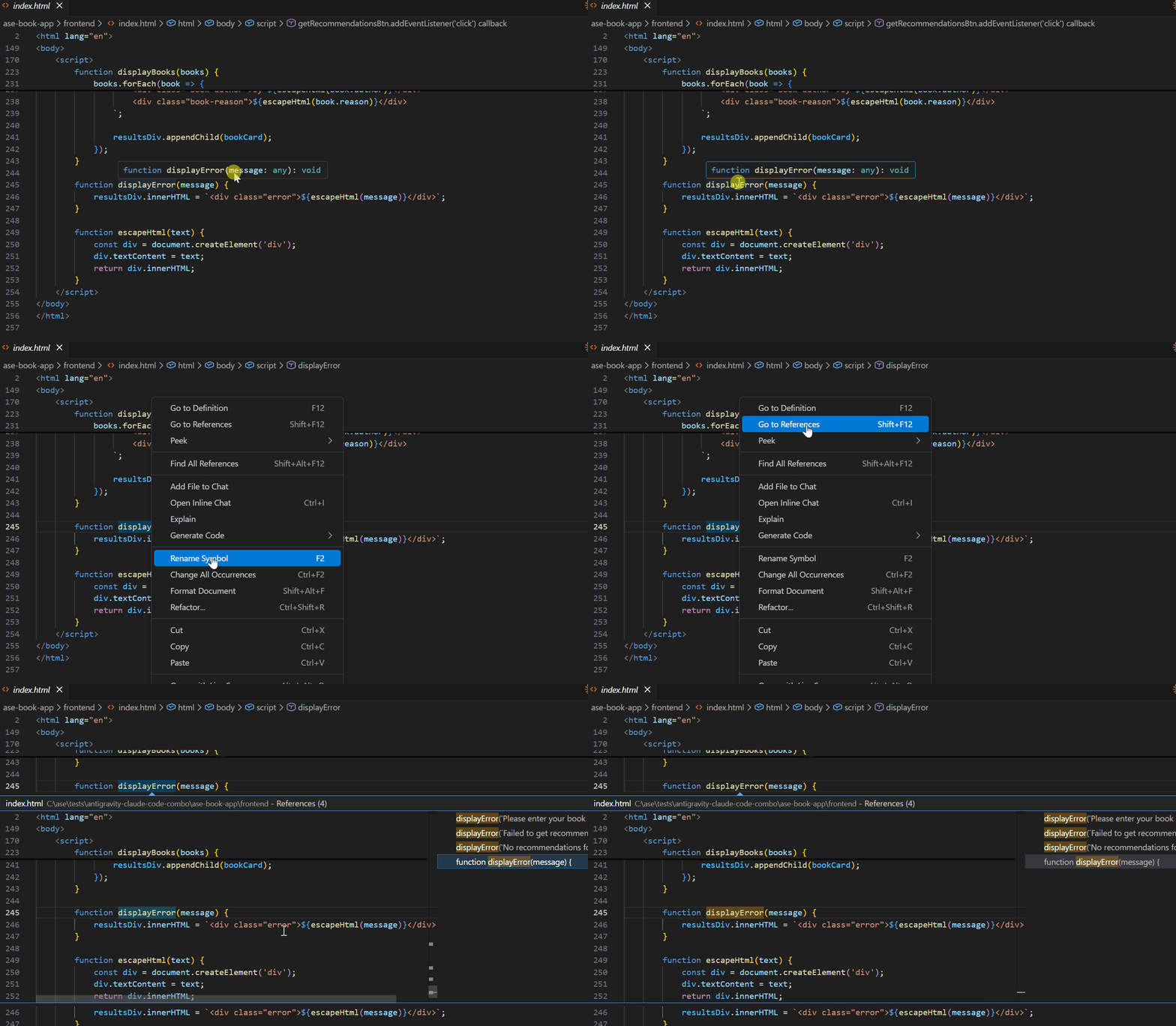 Figure: Before LSP, Claude Code dumbly flipped through files like this
Now with LSP, Claude Code can directly ask the language server where a function is defined and how many places call it—just like Ctrl+click on a function name in VS Code, boom, you’re there.
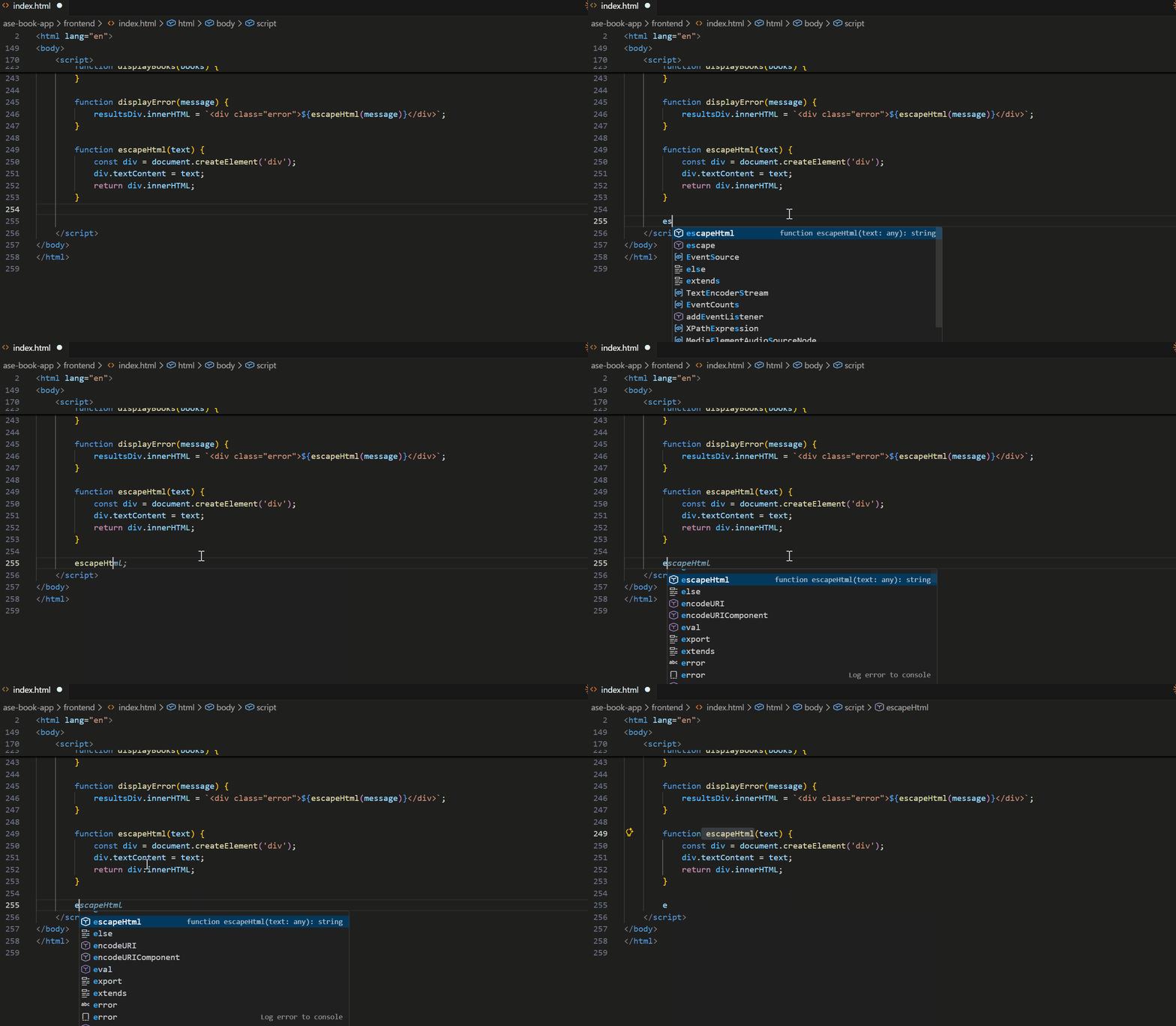 Figure: With LSP, Claude Code can jump directly, pinpoint accuracy
Five steps to set it up
Setting this up isn’t hard, just follow me. First add a line export ENABLE_LSP_TOOLS=1 to your shell config (.bashrc, .zshrc or whatever you use), then restart your terminal or run source ~/.zshrc to apply the changes.
Next, type /plugin in Claude Code, which opens the plugin interface with a bunch of available plugins—find the one for your language. For Python pick pyright-lsp (Microsoft’s static analyzer), for TypeScript/JavaScript pick vtsls or typescript-lsp, for Go pick gopls, for Rust pick rust-analyzer. Choose “Install for me only” and wait for it to finish.
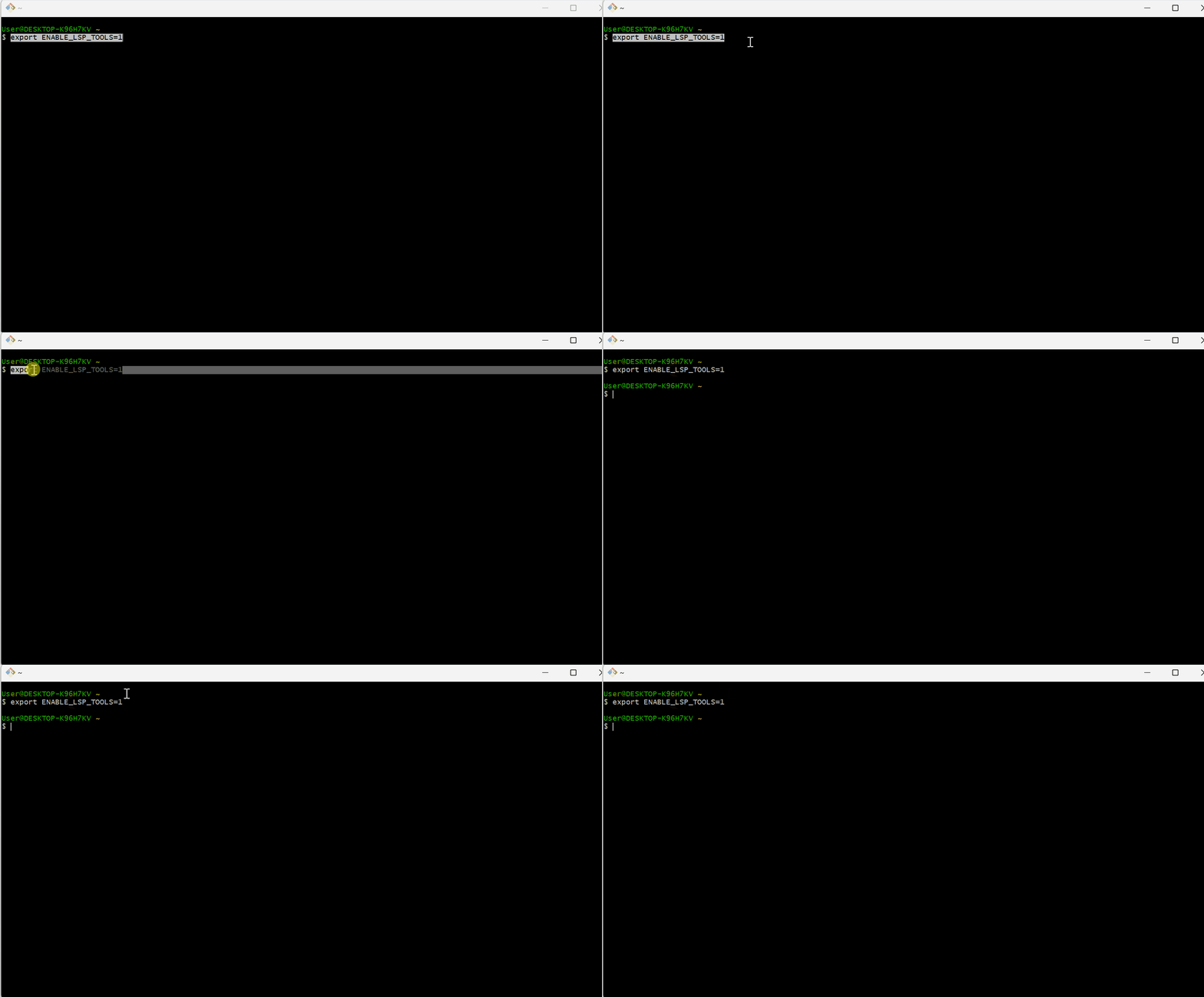 Figure: Installing LSP plugin with the /plugin command
The plugin is just a bridge—the real work is done by the language server binary itself. You need to install it on your system: Python uses pip install pyright, TypeScript/JavaScript uses npm install -g @vtsls/language-server typescript, Go uses go install golang.org/x/tools/gopls@latest, Rust uses rustup component add rust-analyzer.
After installing, restart Claude Code, type /plugin again and check if your newly installed plugin shows up in the “Installed” tab. Or just ask Claude Code “Find references to this function using LSP”—if it uses find_references instead of grep, you’re good to go.
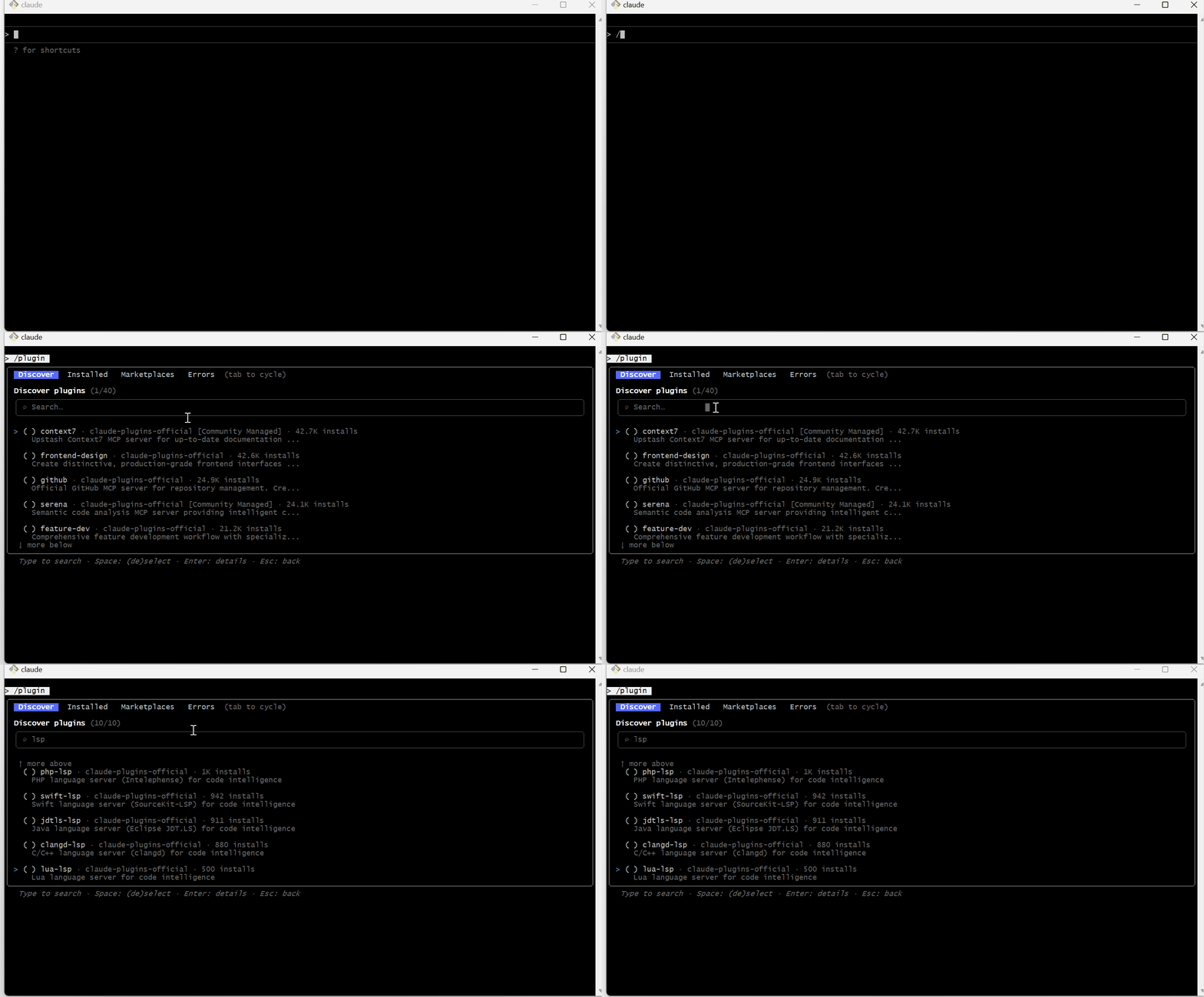 Figure: Using LSP to find function references, no more grep
What LSP can do
Once LSP is configured, Claude Code can do five things you probably do all the time in VS Code. The most intuitive one is jumping to definitions, just like Ctrl+click on a function name in VS Code. Ask Claude Code “Where is the processRequest function defined? use LSP” and it won’t blindly flip through files anymore—it asks the language server and jumps straight to the exact file and line.
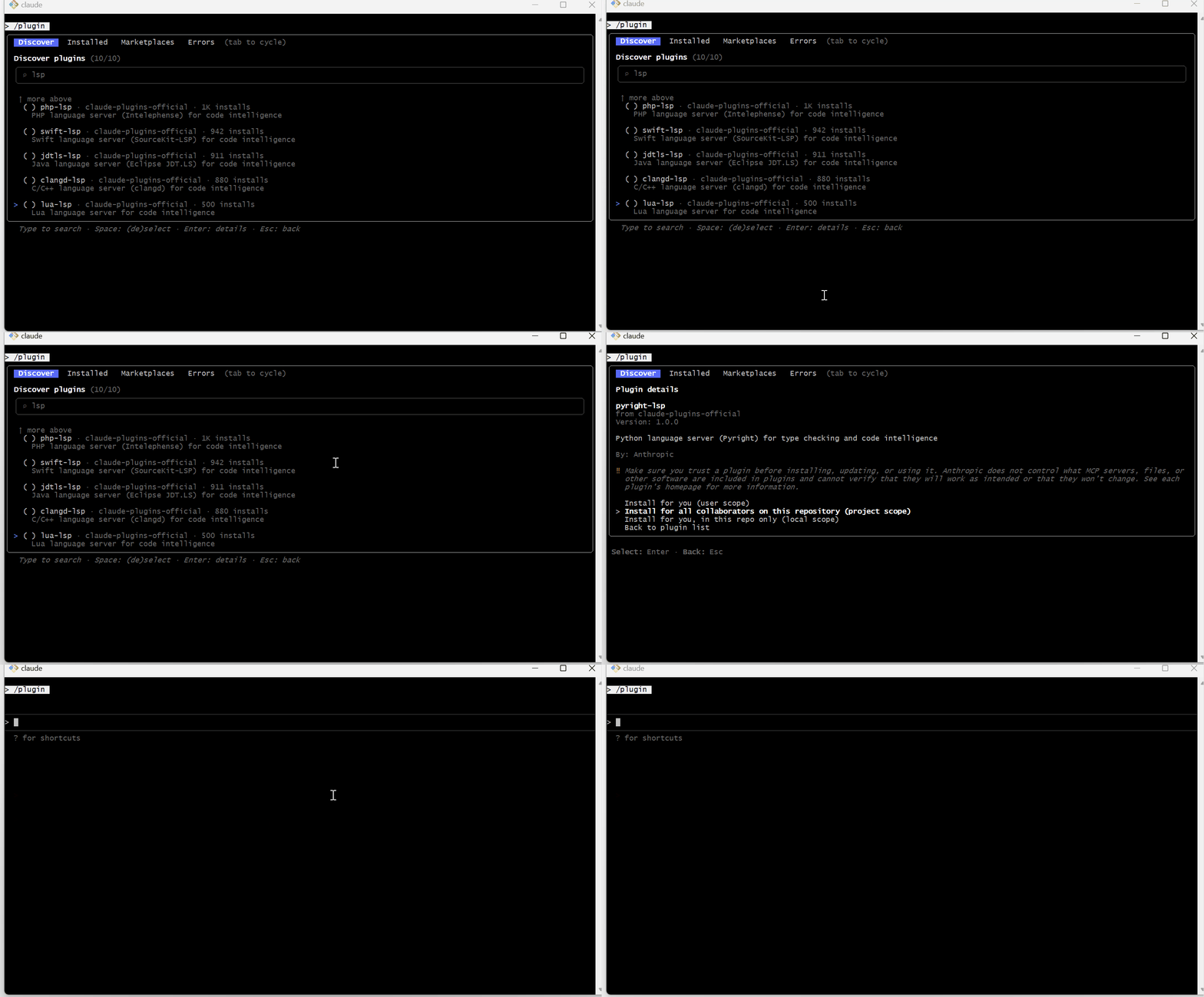 Figure: Using LSP to jump to function definition, pinpoint accuracy
Finding all references is super useful, basically a debugging and refactoring神器. Ask Claude Code “Find all references to the displayError function using LSP” and it asks the language server where this function is called, then gives you a complete list. This comes in handy when you’re modifying a function and want to know if it’ll affect other places, or deleting some code but aren’t sure if anything depends on it, or taking over an old project and want to understand a function’s role throughout the project.
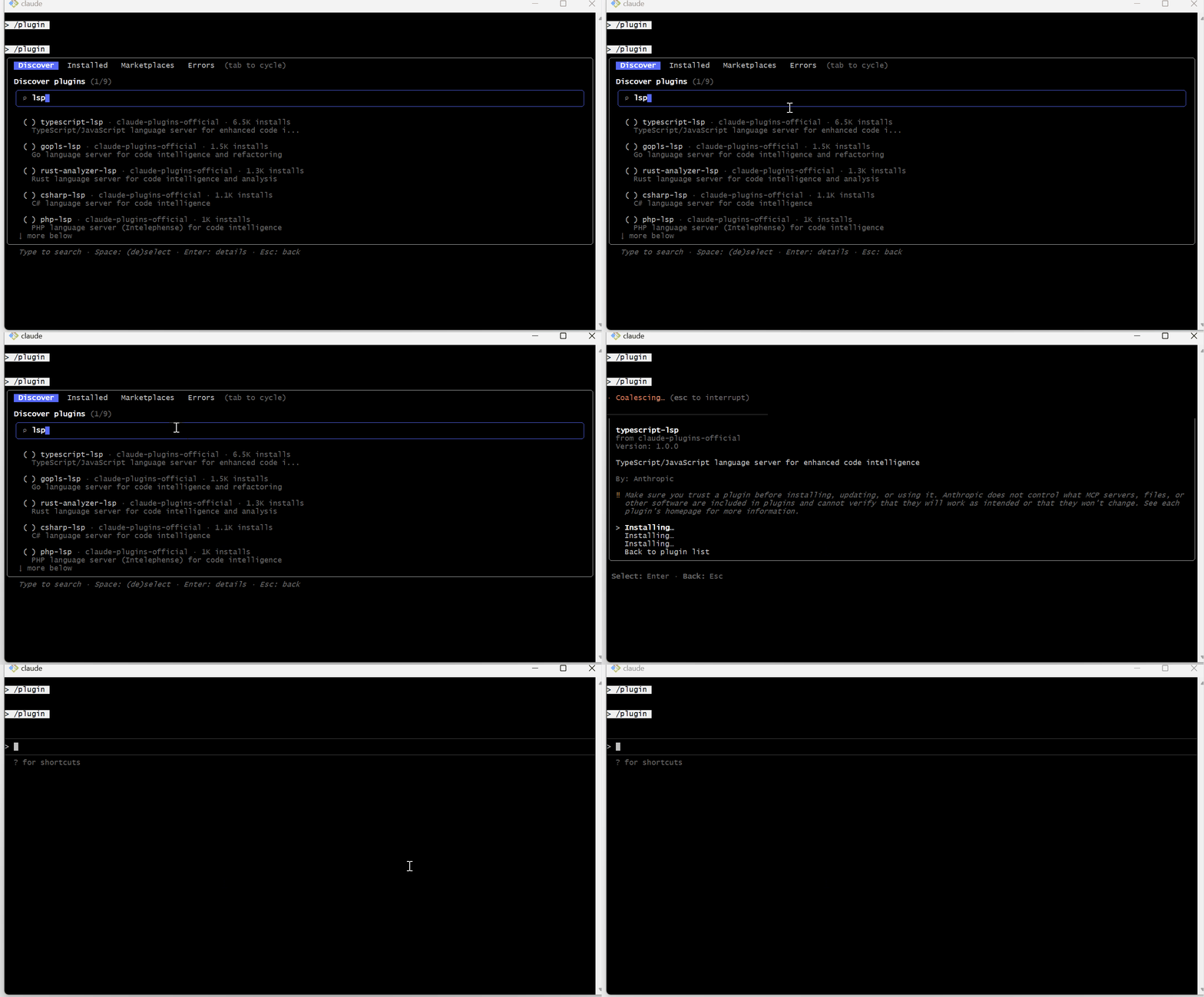 Figure: Find all references to a function, see it all at once
Then there’s hover tips—the popup showing function signature and docs when you hover over a function. Ask Claude Code “What parameters does the displayBooks function accept? use LSP” and it checks the language server, returning the function’s signature info including what parameters it accepts, their types, and the return value. This is especially useful in dynamically typed languages like Python, since Claude used to guess parameter types wrong a lot.
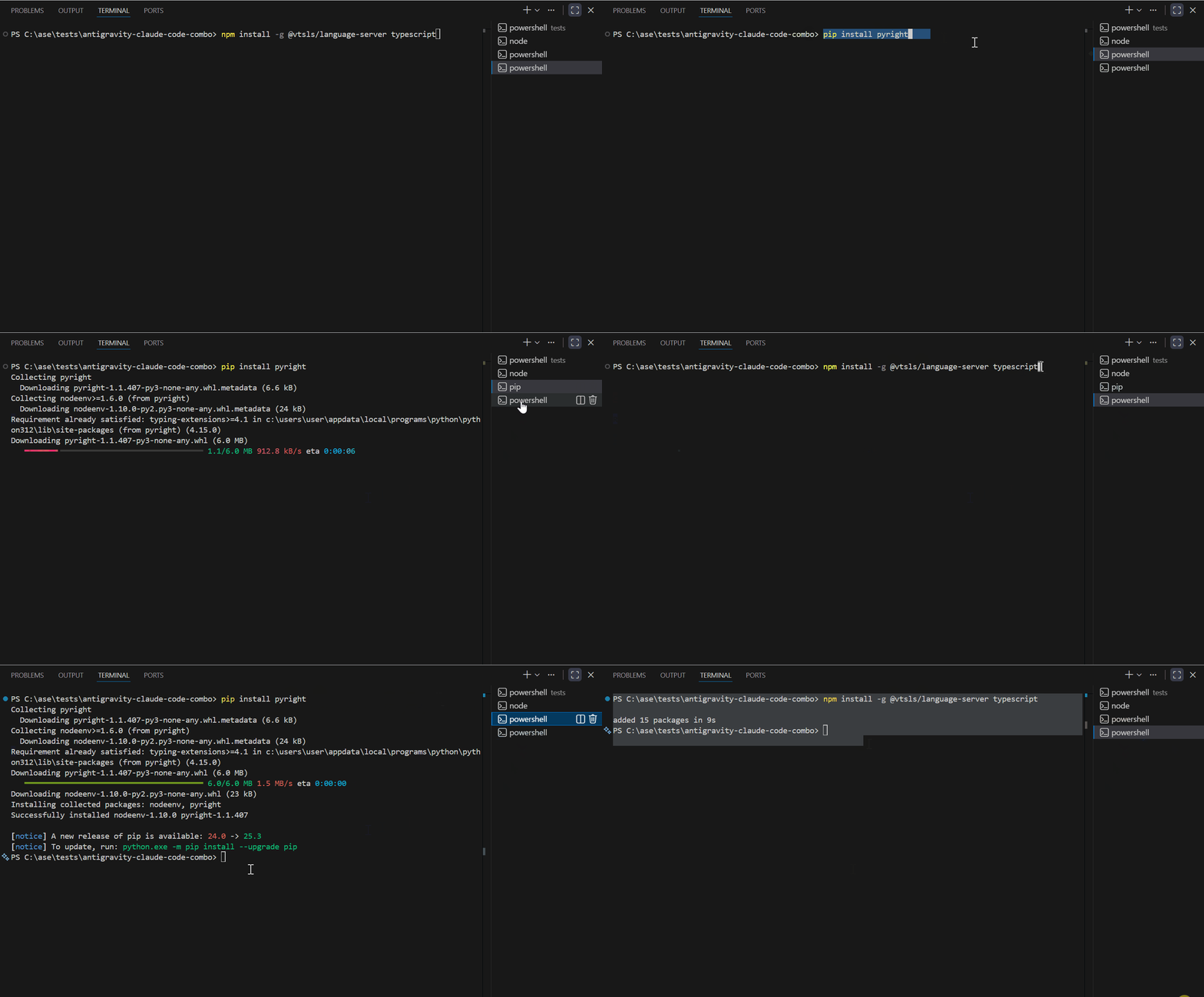 Figure: Query function signature and parameters, no more guessing
If you want to quickly see what’s in a file, use the list document symbols feature, which lists all classes, functions, and variables in a file. Ask Claude Code “Show me all the symbols in backend/index.js use LSP” and it returns a structured list telling you what symbols are defined in that file.
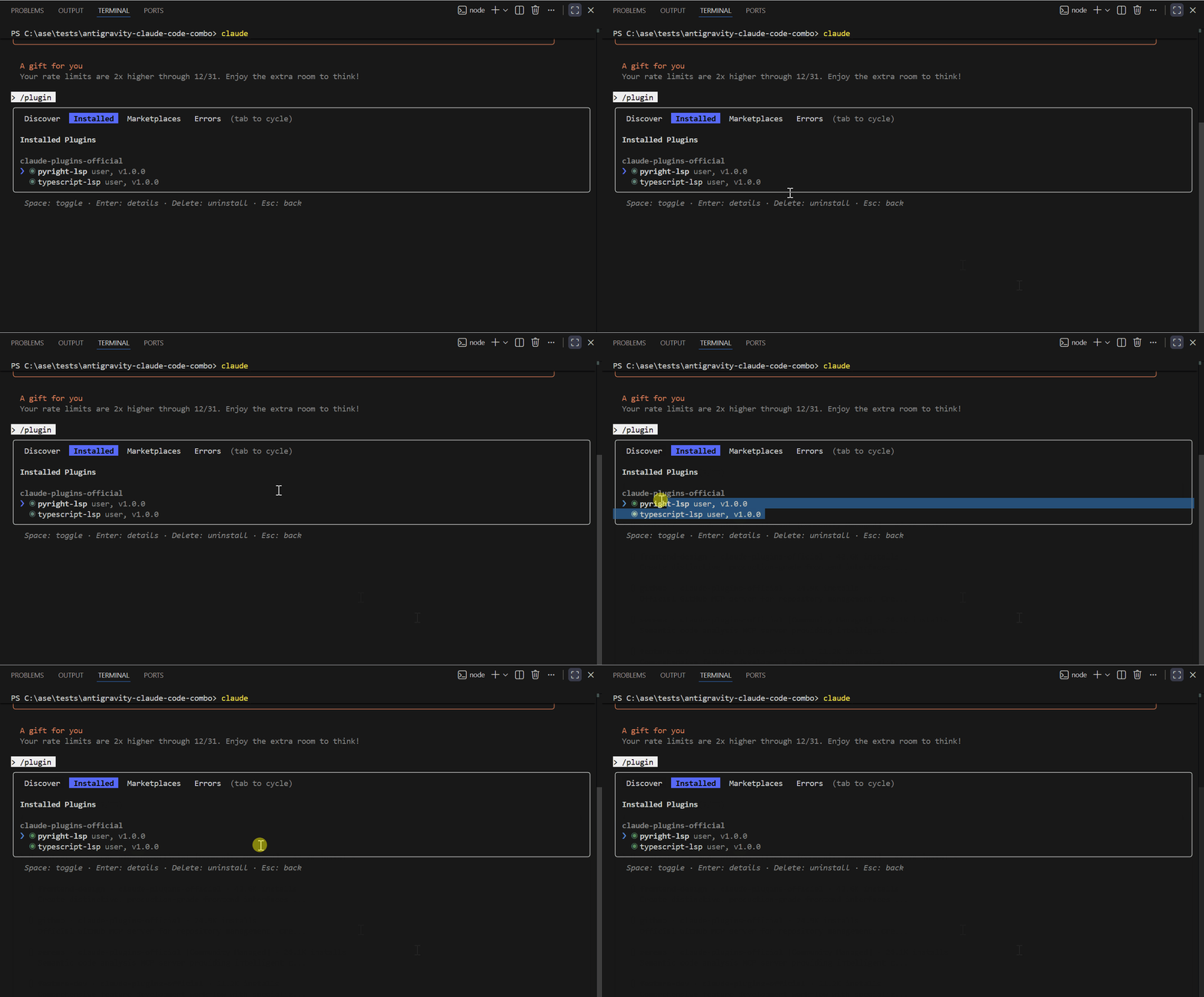 Figure: View all symbols in a file, clear structure
Finally there’s workspace symbol search, which is like project-wide searching but it searches code symbols, not text. Ask “Find all methods that contain innerHTML” and it doesn’t simply search for the “innerHTML” string—it searches for methods, classes, and functions whose names contain innerHTML.
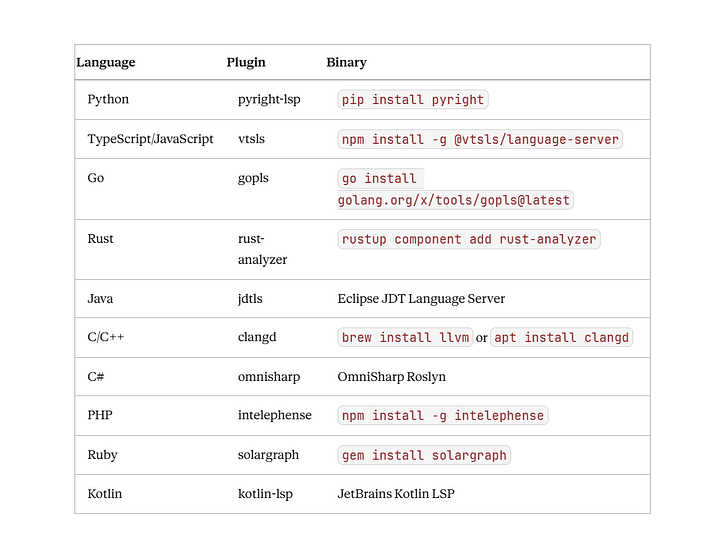 Figure: Search for specific symbols across the project
Oh right, LSP doesn’t just help you navigate code, it also catches errors. Every time you finish editing, the language server reports diagnostics (errors, warnings, hints) to Claude Code.
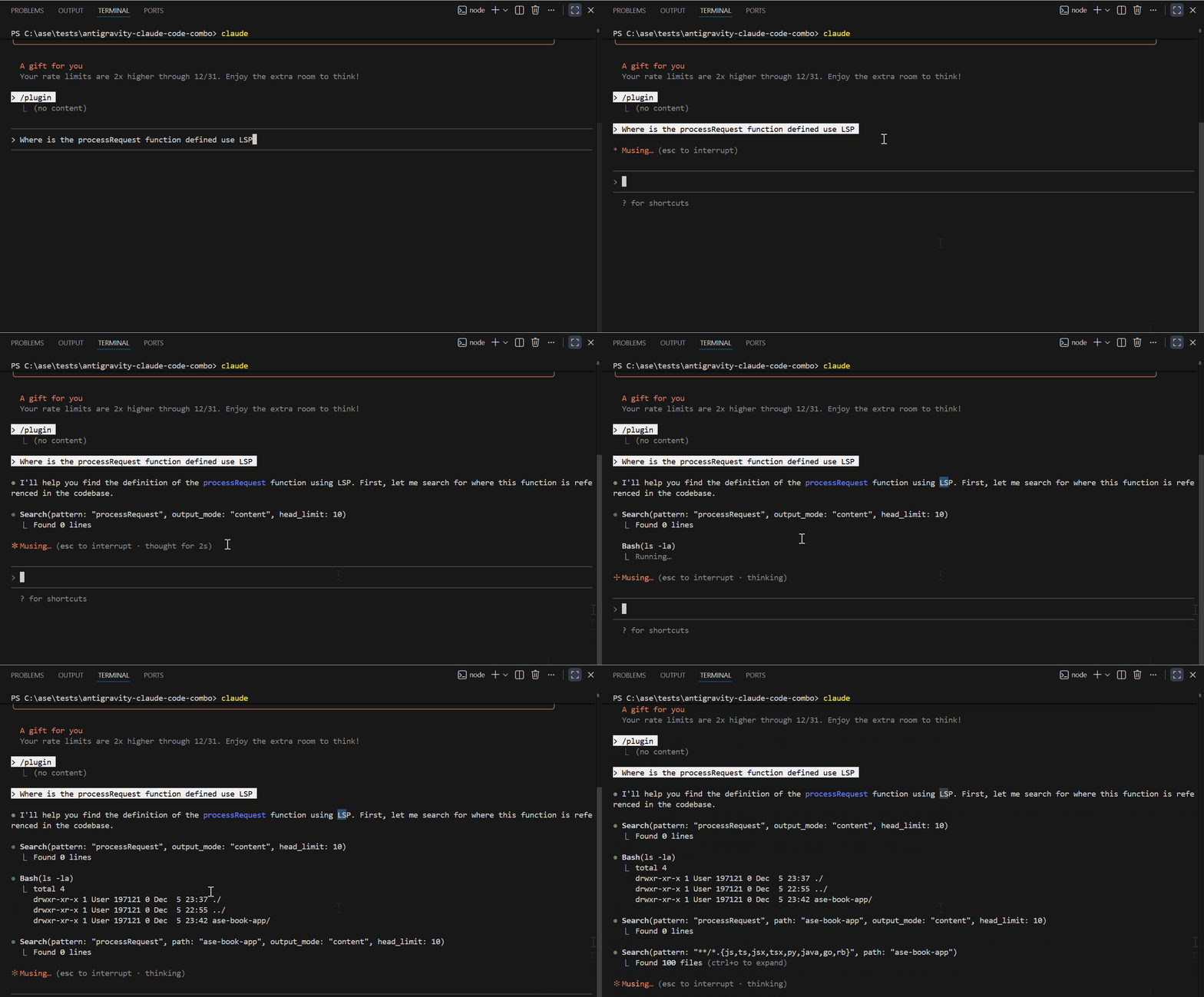 Figure: LSP reports code errors and warnings in real time
Real world usage
I have a project called AseBook Finder, a small app that uses the Gemini API to recommend books. The frontend has several utility functions and I needed to find where the displayBooks function was being called. Without LSP, Claude Code could only grep search for the “displayBooks” string, which worked but might miss context or return false positives.
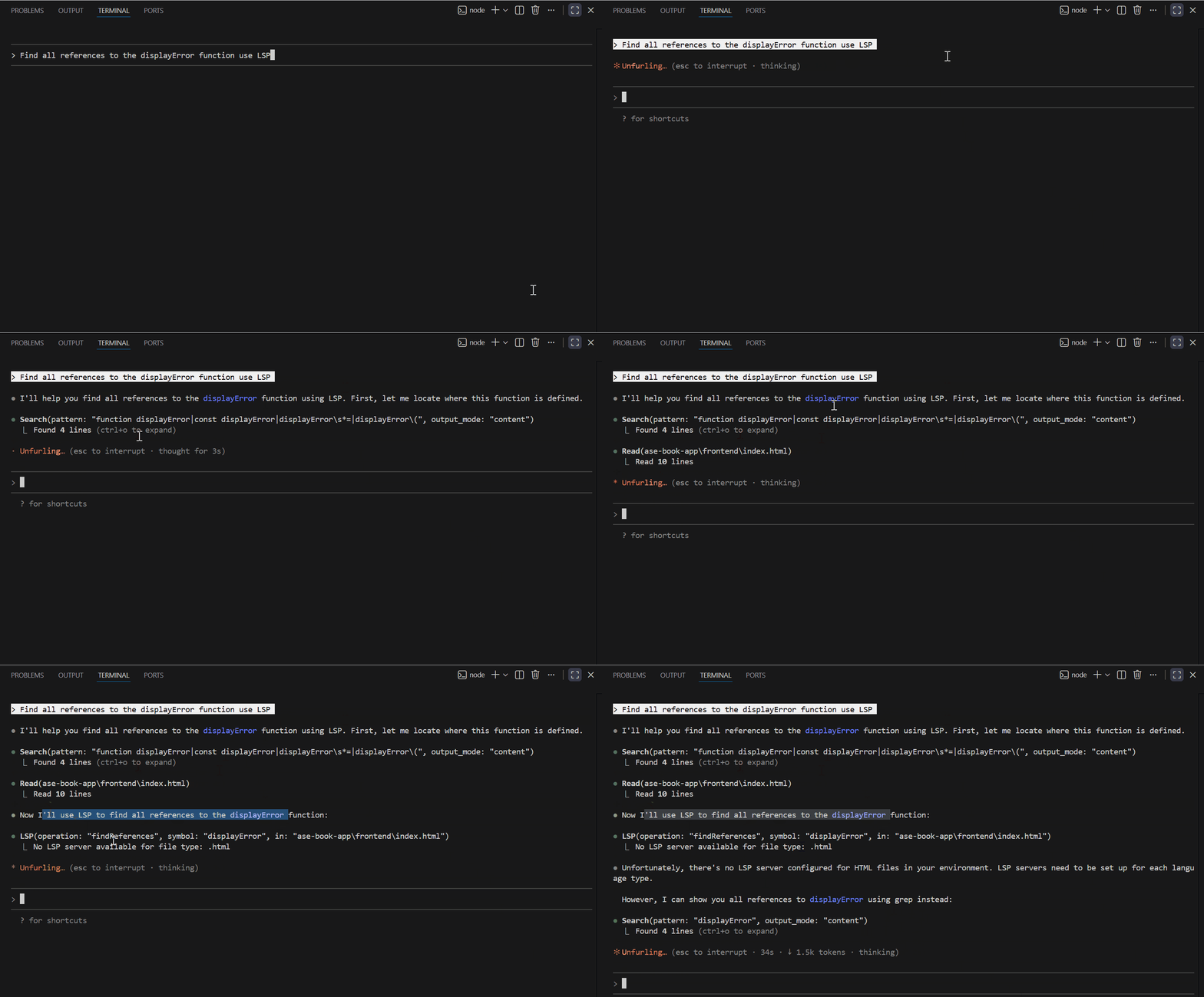 Figure: Using LSP to find function references in a real project
With LSP, I asked Claude Code “Find all references to the displayBooks function using LSP” and it directly asked the language server, returning all the exact locations where it’s called. No manually flipping through files, fast and accurate results.
There’s also a displayError function for displaying error messages. I wanted Claude to understand exactly how this function works before generating new code that uses it, so I asked “What parameters does displayError accept?” Claude Code checked the language server and returned the function signature: it accepts one message parameter.
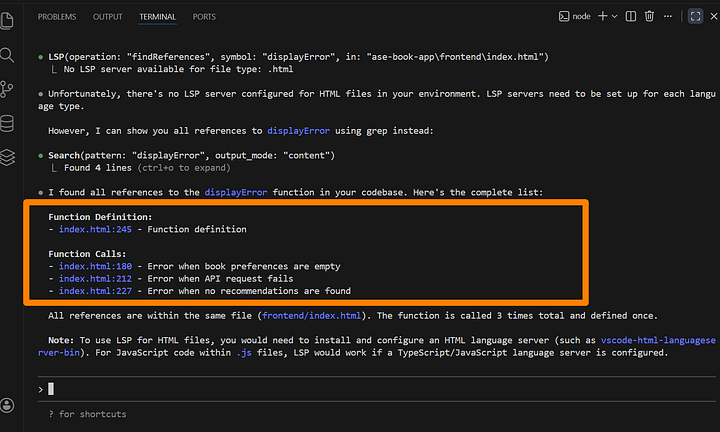 Figure: Query displayError function parameters
This is super useful in large projects where functions might have multiple parameters, default values, complex types, etc. Claude can now read the actual function signature instead of guessing from context. Finally I wanted to trace where the Gemini API recommendation endpoint was being called, so I asked “Find all references to /api/recommendations in the codebase” and Claude Code found the fetch call in the click event handler, on line 27 sending a POST request to http://localhost:3000/api/recommendations. This is really helpful for debugging API issues or understanding your app’s data flow.
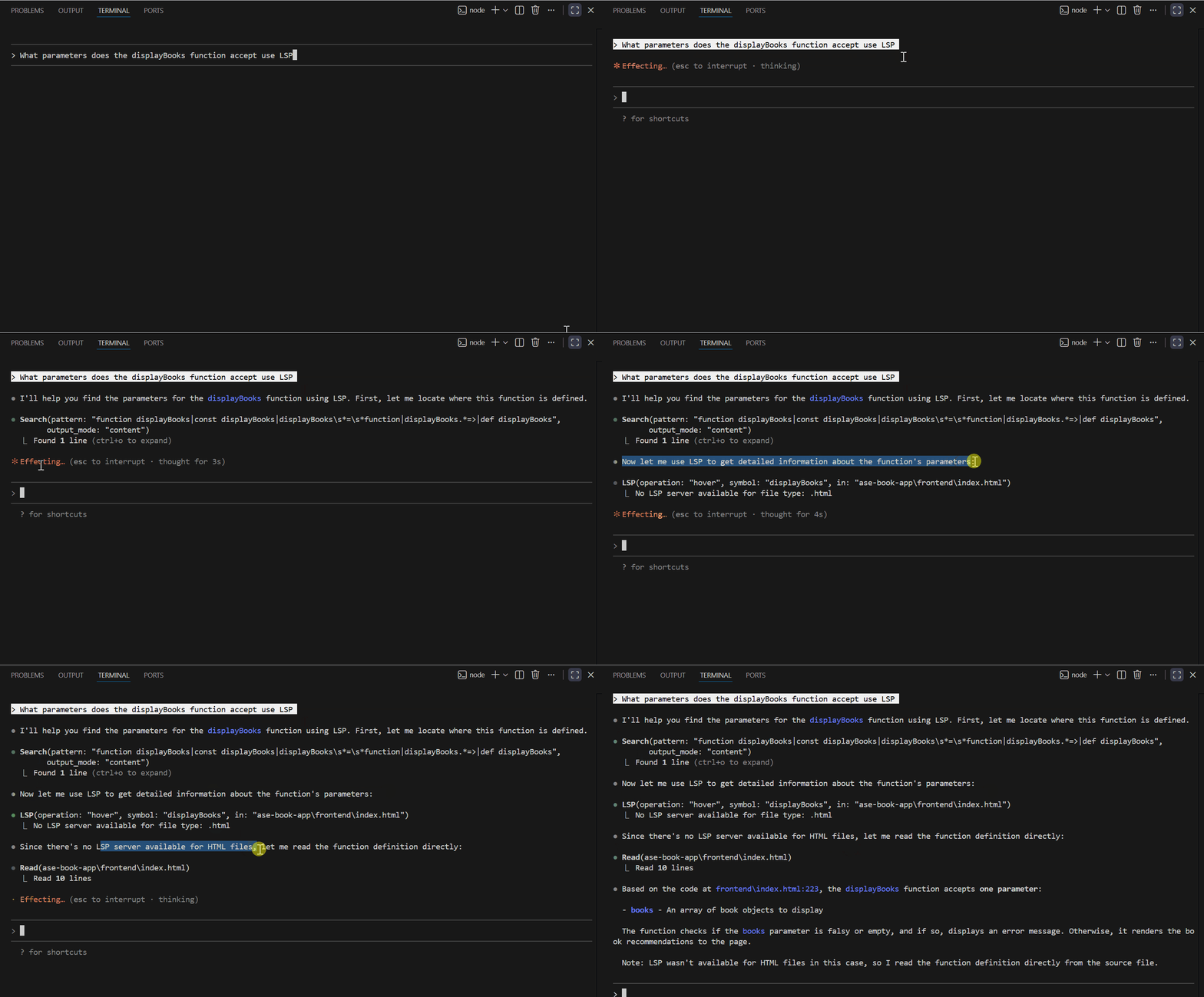 Figure: Trace where API endpoints are being called
Claude Code LSP supports 10+ languages out of the box. If your language isn’t listed, you can write your own LSP plugin—check the Claude Code docs for details.
Wrapping up
Three sentences to sum it up: LSP is a protocol from Microsoft that makes code intelligence work in any editor, like giving a navigator a car that can drive any brand; Claude Code can now precisely jump to definitions, find references, and view function signatures, no longer that dumb guy who only knows grep; configuration takes five steps—toggle the switch, install plugin, install server, restart, verify—then enjoy.
If you use Claude Code for coding daily, this feature is worth setting up, especially when taking over old projects or refactoring code—it saves a lot of hassle.
That’s about it for this article. If you found it helpful, give it a like so more people can see it. Feel free to share it with friends or colleagues who might need it. Follow Rex AI Programming if you want more tech articles like this, and drop a comment if you have any questions or thoughts.