Codex Skills Tips: Transform Your AI Coding Assistant into a Pro
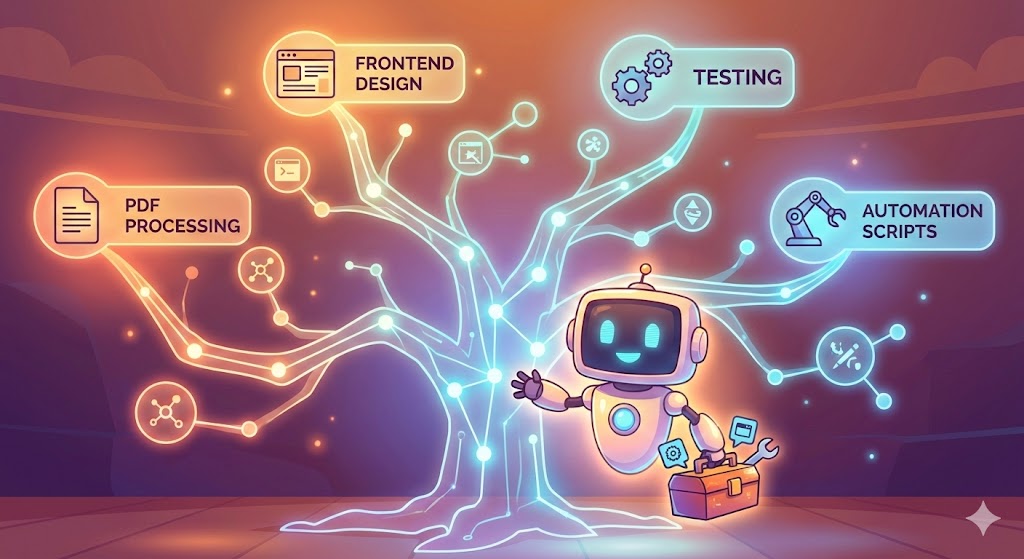
Table of Contents
- Introduction: The “Skill Tree” of AI Coding Assistants
- What Are Skills? A Real-Life Analogy
- Two Approaches: Global vs Project-Level
- What’s in the Official Skills Library?
- General Codex Configuration (config.toml)
- How to Use Skills?
- Advanced: Writing Your Own Skill
- Security Reminder: Don’t Fall Into Traps
- Relationship with Claude Agent Skills
- Summary
- Coming Up: Building Skills From Scratch
- Resources
Introduction: The “Skill Tree” of AI Coding Assistants
Ever wondered why some developers are incredibly productive with AI coding assistants while others feel like the AI just “doesn’t get it”?
It’s like playing a video game—same character, but some players spec into a specialized warrior build while others stay as a “jack of all trades, master of none.” Codex’s Skills feature is the secret weapon that transforms your AI assistant from “knows a bit of everything” into a “domain expert.”

What Are Skills? A Real-Life Analogy
Imagine you hire a tutor. This tutor is brilliant—can teach math, physics, chemistry, and English. But if you want them to specifically help you ace your calculus exam, what’s the best approach? Give them a detailed syllabus, explain your school’s exam style, and hand over some past papers.

Skills are that “syllabus.” They’re folders containing instructions, reference materials, and even executable code that help AI handle specific tasks with precision rather than vague generalizations.
Simply put, the core idea of Skills is: load specialized knowledge on demand, instead of stuffing everything into memory. This prevents the AI’s “working memory” from overflowing while delivering targeted expertise when needed.
Two Approaches: Global vs Project-Level
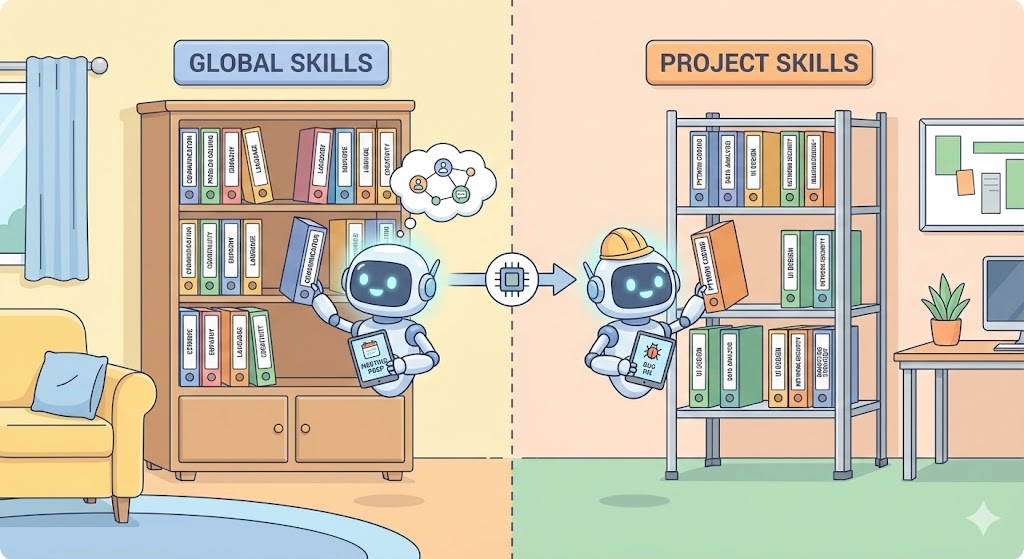
There are two ways to configure Skills, like organizing bookshelves: one in the living room for everyone to access, another in your room for project-specific use only.
Global Configuration (Native Codex Method)
This is Codex’s experimental feature—skill files live in a fixed location on your computer, accessible to all projects.
Steps:
- Create the skill directory:
mkdir -p ~/.codex/skills/your-skill-name
- Create a
SKILL.mdfile in the directory with this format:
---
name: pdf-processing
description: Extract text and tables from PDFs, use when user mentions PDF, forms, or document extraction
---

# PDF Processing Guide
- Use pdfplumber library for text extraction
- Reference forms.md for form handling
- Restart Codex, and the skill loads automatically
Notes:
namefield: max 100 charactersdescriptionfield: max 500 characters- Format errors will trigger startup warnings—Codex is responsible like that
Project-Level Configuration (Recommended)
This approach is more flexible—skills travel with your project, no worries about losing them when switching machines. Plus, this pattern is borrowed from Anthropic’s Claude, battle-tested and reliable.
Steps:
- Create a skills folder in your project root:
mkdir -p .claude/skills
Drop your
SKILL.mdfiles in there—grab ready-made ones from the Anthropic official skills repo or write your ownWant to keep it private? Add
.claudeto your.gitignore
What’s in the Official Skills Library?
Anthropic’s official skills library is a treasure trove. Here’s a quick rundown:
| Skill Name | Purpose |
|---|---|
algorithmic-art | Generate algorithmic artwork |
brand-guidelines | Create content following brand specs |
canvas-design | Canvas-based design |
doc-coauthoring | Collaborative document writing |
docx | Word document processing |
frontend-design | Frontend design |
internal-comms | Internal communications documents |
mcp-builder | MCP server generation |
pdf | PDF processing |
pptx | PowerPoint creation |
skill-creator | Create new skills |
slack-gif-creator | Slack GIF creation |
theme-factory | Theme factory |
web-artifacts-builder | Web component building |
webapp-testing | Web application testing |
xlsx | Excel processing |
See? From document processing to frontend design, testing to creative generation—pretty much every scenario you can think of is covered.
General Codex Configuration (config.toml)
Beyond skill configuration, you can fine-tune Codex behavior by editing the main config file at ~/.codex/config.toml—set default models, approval policies, sandbox mode, and more.
Example: Configure Profiles for Quick Switching
# ~/.codex/config.toml

[profiles.deep-review]
model = "gpt-5-pro"
model_reasoning_effort = "high"
approval_policy = "never"
Activate this configuration with codex --profile deep-review.
How to Use Skills?
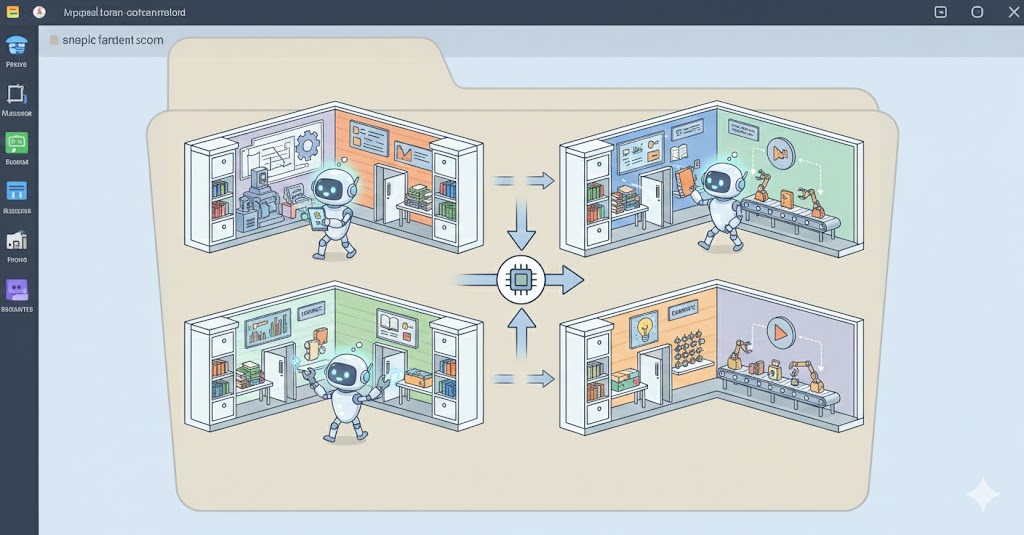
Once configured, you can invoke skills when interacting with Codex.
- Implicit invocation: When your instruction closely matches a skill’s
description, Codex (or Claude Agent) may automatically load and use that skill. - Explicit invocation: For project-level skills, use the
@symbol to directly reference skill files, ensuring the agent uses a specific skill.
Usage Example:
Say you have a scaffolding skill artifacts-builder/ in .claude/skills/, you can invoke it like:
“Use @.claude/skills/artifacts-builder to create a React component library project structure”
Or simpler, if the skill’s description is well-written:
“Create a React component library project structure”
Codex will automatically match the appropriate skill based on your needs.
Advanced: Writing Your Own Skill
Real talk—using others’ skills is just getting started. Writing your own skills is where the pros shine.
Progressive Disclosure Principle
This principle is key: don’t cram everything into one file. Like documentation, put core content in the main file, detailed references in attachments.
my-skill/
├── SKILL.md          # Core instructions
├── reference.md      # Detailed reference
├── examples/         # Example files
└── scripts/          # Executable scripts
The main SKILL.md contains only “trigger conditions” and “core operations”—detailed explanations and examples go in referenced files.
Executable Code Integration
A killer feature of Skills is embedded scripts. You can include a Python script that AI calls automatically when needed:
---
name: data-processor
description: Process data files, use when sorting, filtering, or transforming data is needed
---

# Data Processing
When data processing is needed, run scripts/process.py.
This way, deterministic operations (sorting, format conversion) go to scripts, creative work goes to AI—clear division of labor.
Security Reminder: Don’t Fall Into Traps
With great power comes responsibility:
- Only install skills from trusted sources—Anthropic’s official repo is your best bet
- Carefully review third-party skills—especially those with scripts, watch for suspicious network requests
- Use caution in production—test in staging first
Just like downloading software—be careful with unknown sources.
Relationship with Claude Agent Skills
You might have noticed this article mentions both Claude and Codex. In fact, Codex’s Skills feature is largely inspired by Anthropic’s Agent Skills concept designed for Claude.
Key differences:
| Aspect | Codex Skills | Claude Agent Skills |
|---|---|---|
| Maturity | Experimental | Relatively mature |
| Location | ~/.codex/skills/ | .claude/skills/ |
| Loading | Auto-load at startup | @ reference or auto-detection in conversation |
| Features | Basic | Complex nesting and scripts supported |
Good news: the SKILL.md format is largely compatible between both systems—most Claude skills work directly in Codex.
Summary
Skills elevate AI coding assistants from “generalist” to “specialist.” With proper configuration and use, you can:
- Make AI better understand your project requirements
- Stop repeating the same background context
- Get more precise help on specific tasks
While still evolving, this feature represents the future direction of AI coding tools: more specialized, more controllable, more powerful.
Give it a try—your next Skill might become your team’s productivity game-changer.
Coming Up: Building Skills From Scratch
This article covered how to use Skills, but you might be wondering: how do you write a truly useful Skill from scratch?
Next up: “How to Write Codex Skills: A Complete Zero-to-One Guide” will walk you through:
- Deconstructing official skill design patterns—see how the pros do it
- Starting from a real need—like auto-generating API documentation
- Lessons learned from pitfalls—patterns that look right but are actually traps
- Debugging tips—what to check when skills don’t work
- Best practices checklist—ready to copy
Don’t want to miss it? Hit that follow button.
Resources
- Codex Skills Official Docs
- Anthropic Skills Repo
- Agent Skills Introduction
- Codex Configuration Guide
Found this useful? Give it a like to help others discover it, and share with friends who are still struggling to communicate with their AI assistants. Questions? Drop them in the comments—I’ll do my best to respond.