
Hey buddy, you know what? Manjaro 26.0 is out!
Last time we talked about Manjaro 25.0, you said you wanted to give it a try. Well, six months have passed and a new version is here. To be honest, Manjaro updates more often than I change my phone case.
So What Exactly Is Manjaro?
If you’ve never tried Linux before, let me give you an analogy. Arch Linux is like a race car that comes in parts - all the pieces are there, but you gotta build it yourself. Manjaro, on the other hand, is like the manufacturer assembling it for you - just get in and drive.
That’s why many people love Manjaro. It has all the advantages of Arch (fresh software, rolling updates) without the hassle. It’s like wanting hot pot but not wanting to chop vegetables and wash dishes - just go to Haidilao, right?
What’s New in 26.0
This release is codenamed “Anh-Linh” - sounds Vietnamese to me. Regardless of the name, the updates are pretty solid.
Desktop Environment Upgrade
KDE Plasma has been upgraded to 6.5, and Gnome to 49. The big news is that Wayland is now enabled by default.
You might be wondering, what is Wayland? Simply put, it’s the new display protocol. It’s like everyone used 3G before, and now we’ve switched to 5G - faster, more power-efficient, and better compatibility.
Kernel Update
Linux kernel has been upgraded to 6.18, and the NVIDIA drivers have been updated too. Just a heads up though - the new drivers only support Turing and newer architecture graphics cards. If your GPU is older, you might want to think twice.
Common Software
- Firefox upgraded to 146
- LibreOffice upgraded to 25.8.4
- Mesa updated to 25.3.3
Basically, everything you need is there, and all the versions are pretty recent.
Let’s Walk Through the Installation
I’m using the XFCE desktop version. If your hardware doesn’t support Wayland, I’d recommend this one too. XFCE might look a bit plain, but it’s stable and light on resources.
After booting the ISO, you’ll see the Manjaro boot screen.
Once you enter the Live system, there’s an Install icon on the desktop - just click it to start.
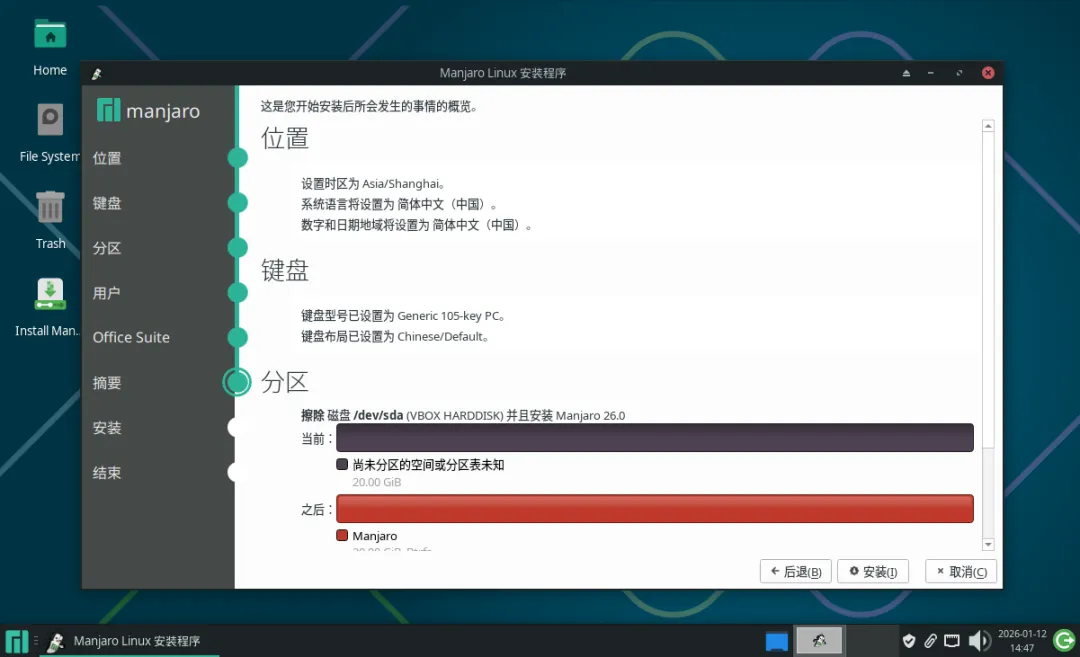
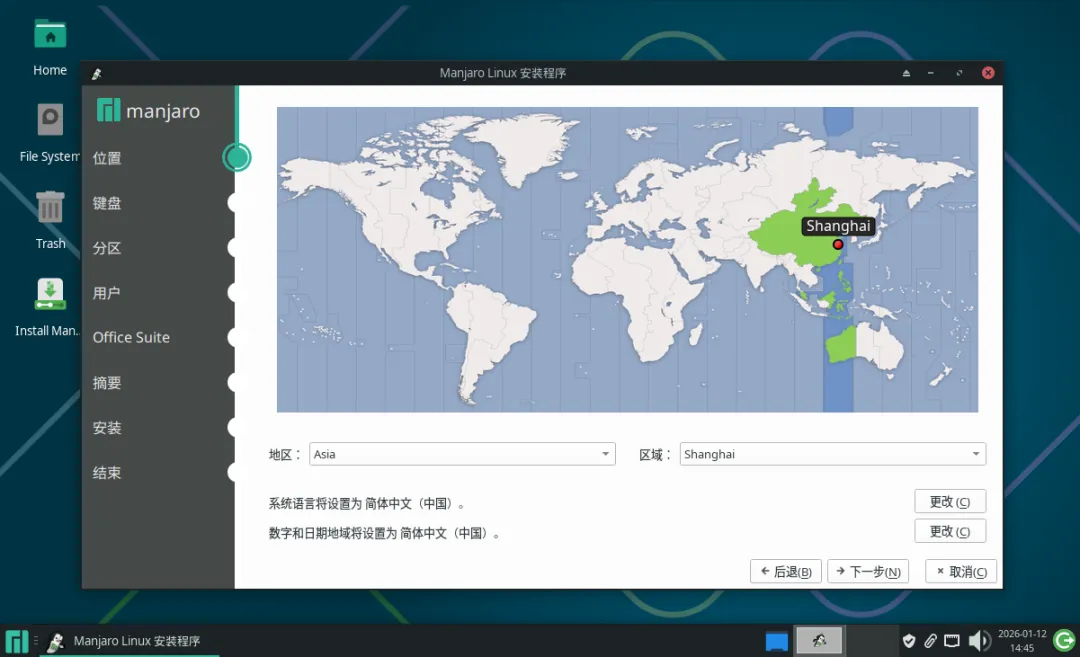
The installation wizard supports Chinese. Pick your language and keep clicking Next:
- Select timezone (Asia/Shanghai)
- Keyboard layout (default is fine)
- Disk partitioning
- Create user and password
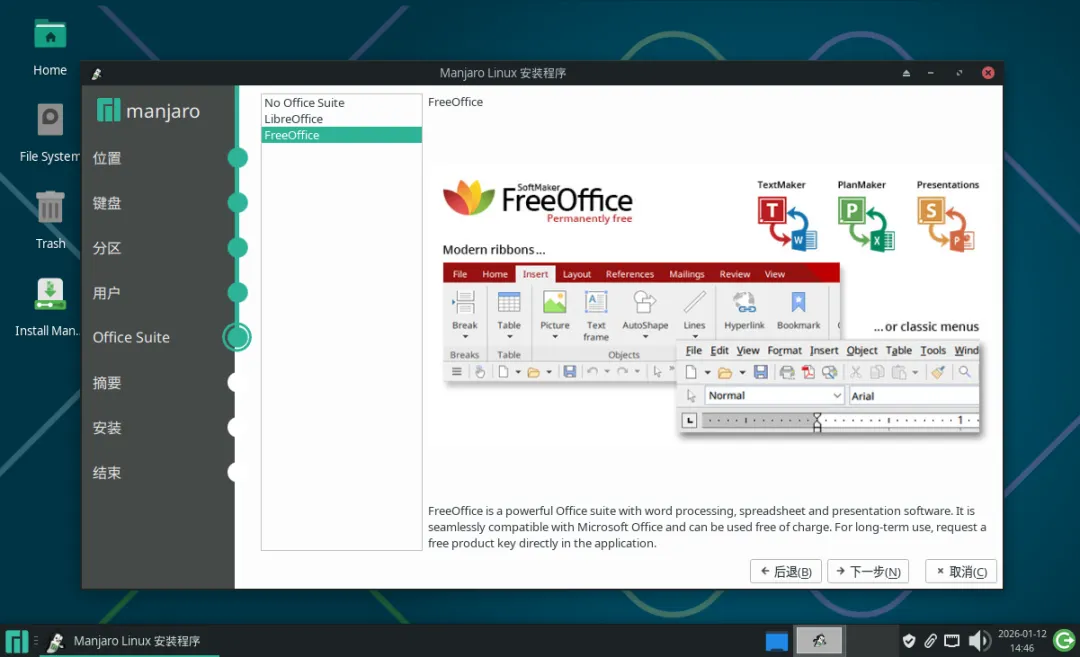
- Choose whether to install Office suite

The whole process is even easier than installing Windows - just click through.
What It Looks Like After Installation
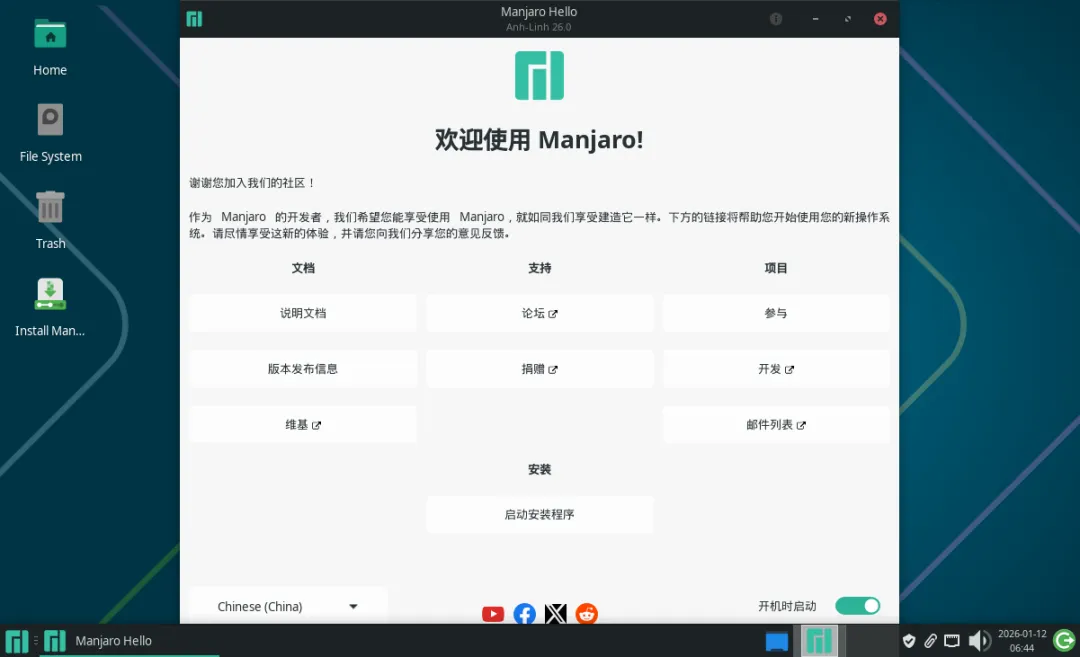
After rebooting, the first thing you’ll see is a clean and tidy system.
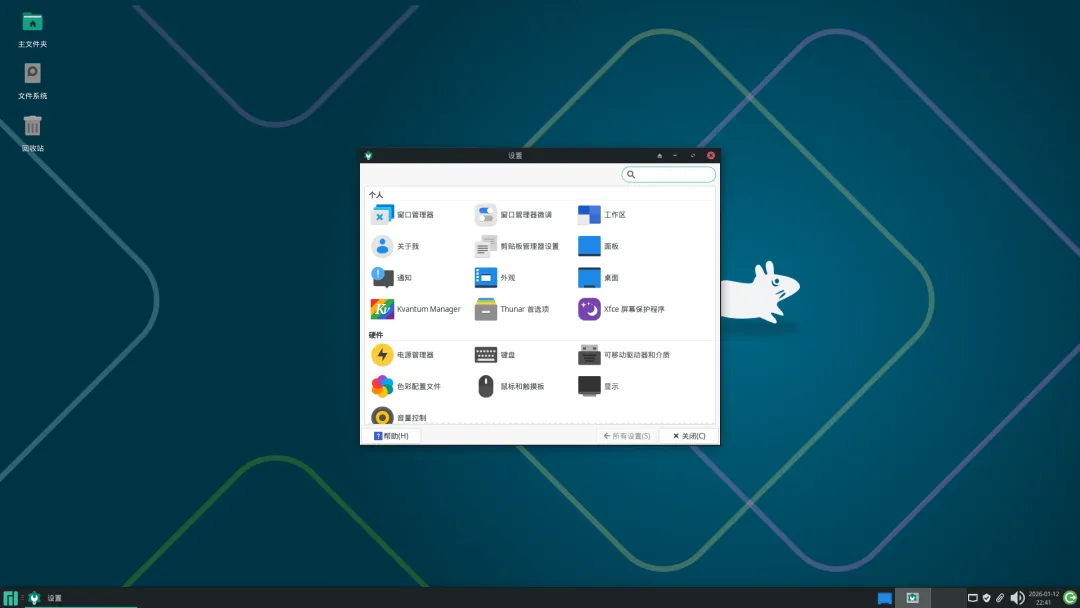
The system settings window has everything you need - easy to customize.
The XFCE menu is simple but has everything.
Here’s the file manager - straightforward and reliable.
Changing the Wallpaper
Tired of the default wallpaper? Let’s switch it up.
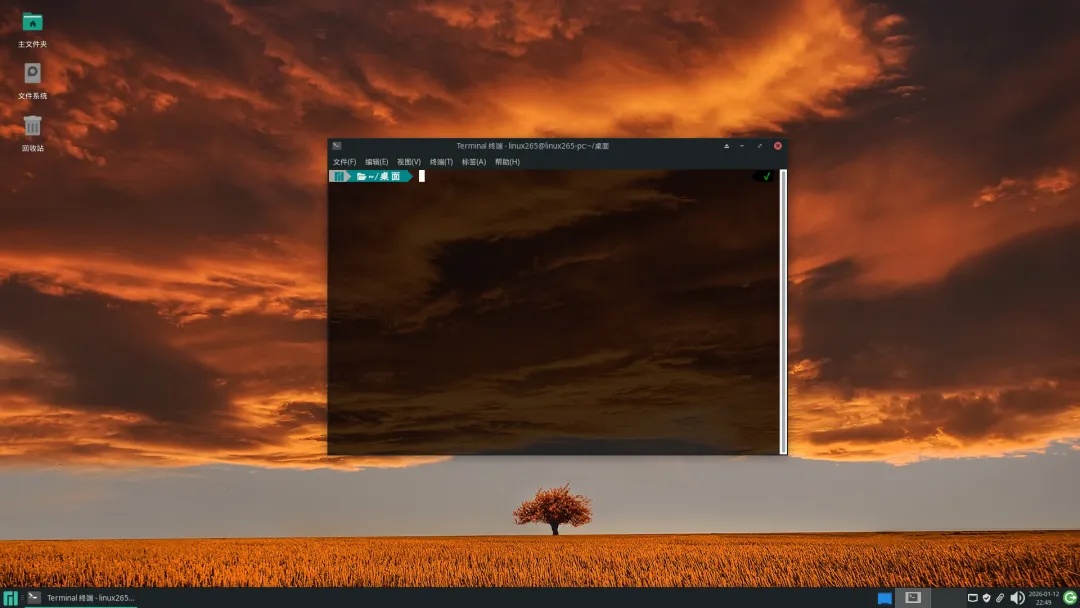
This golden wheat field wallpaper with the sunset sky looks so relaxing.

And this ink wash style one has such an artistic vibe.
Terminal and Browser
Here’s what htop looks like in the terminal. Manjaro has optimized the display - it looks really nice.
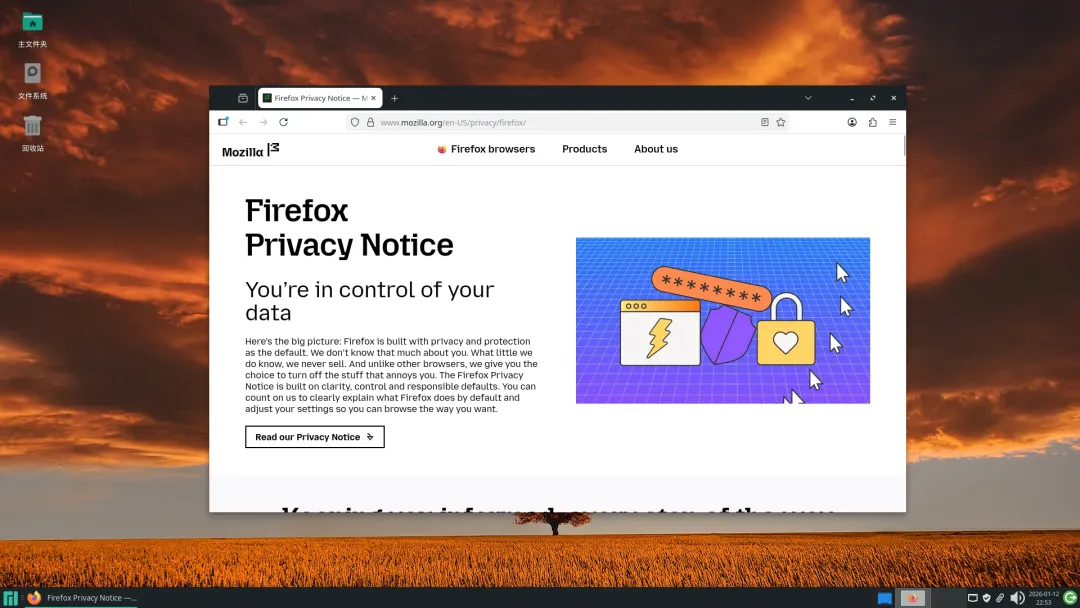
The default browser is Firefox - the old faithful of Linux.
Logout Screen
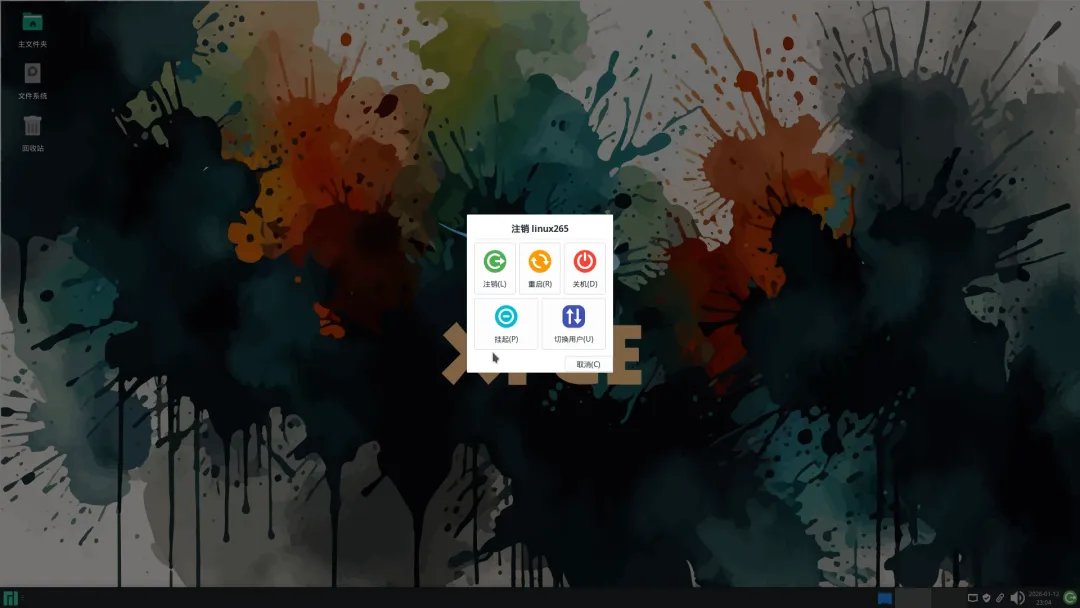
The logout screen looks pretty good too - logout, restart, shutdown, suspend, switch user - all there.
Final Thoughts
Manjaro, as a mature Linux distro, is really suitable for people who want to try Linux but don’t want to deal with too much complexity. It has the advantages of Arch, but installation and usage are much simpler.
If you’ve been wanting to try Linux but were worried it might be too difficult, Manjaro is a great choice. Version 26.0 has a lot of improvements - definitely worth checking out.
Of course, if you’re a seasoned user who wants more control, you can always go with Arch directly. Different strokes for different folks, right?
Found this article helpful? Give it a like and share it with your friends! Feel free to leave a comment if you have questions - let’s discuss together.
Follow me for more Linux and open source content!