Ki Editor: Treat Code Like LEGO Blocks
A True Story
Last week I needed to refactor a project, replacing all console.log calls with a custom logger.debug. About 200+ occurrences.
Using VS Code’s multi-cursor? I’d have to select each one manually. Using regex replace? Some console.log strings were inside other strings and shouldn’t be changed. After half an hour of struggling, my eyes were practically bleeding.
Then I tried Ki Editor.
Two keystrokes selected all console.log calls in the current file—not through text matching, but through syntax recognition. The console.log inside strings was automatically skipped. Two more keystrokes, all replaced. Done in 10 seconds.
That’s when it clicked: traditional editors see characters. Ki Editor sees code structure.
What is Ki Editor?
Ki Editor is a “structural editor.”
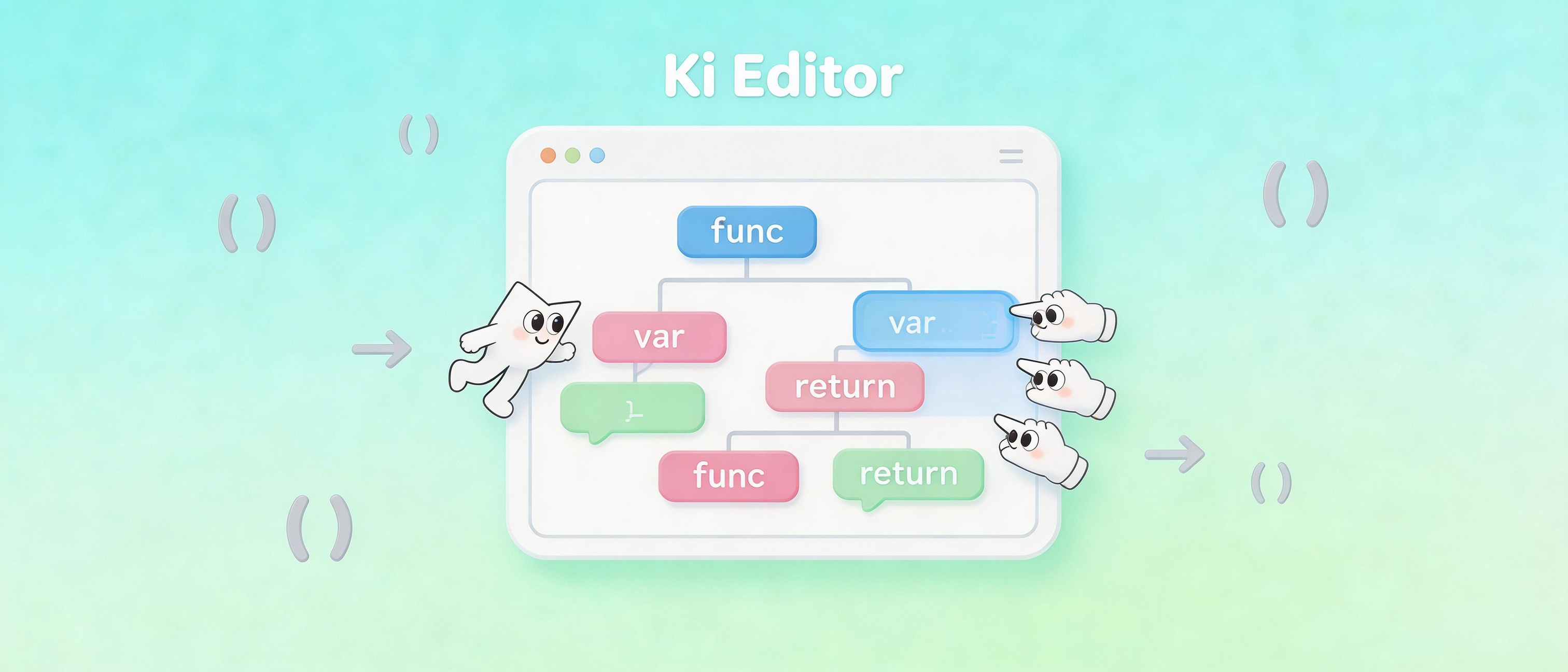
Traditional editors see a stream of characters: f-u-n-c-t-i-o-n. Ki Editor sees a syntax tree: this is a function declaration, containing a parameter list, which has three identifiers.
Think of it like looking at LEGO bricks. Regular people see plastic blocks. Experienced builders see “a 2x4 red brick” and “a 1x2 transparent slope.” Ki Editor gives you that expert perspective.
It uses Tree-sitter to parse code, turning each file into a syntax tree. Your cursor doesn’t move between characters—it jumps between syntax nodes.
Core Concept: Selection is Syntax
Ki Editor’s most fundamental concept is “first-class syntax selections.”
Traditional editor selections are “from line 3, column 5 to line 7, column 12.” That’s a rectangle with no semantic meaning.
Ki Editor selections are “the entire body of this function” or “the condition expression of this if statement.” These are syntax units with clear boundaries and meaning.
Take this JavaScript:
function greet(name) {
  if (name) {
    return `Hello, ${name}!`;
  }
  return "Hello, stranger!";
}
In Ki Editor, you can:
- Place the cursor on
name, press once, and the selection expands to the entire parameter list(name) - Press again, it expands to the entire function signature
function greet(name) - Press once more, it expands to the entire function body
{ ... }
This isn’t “selecting more characters”—it’s “selecting larger syntax units.”
Multi-Cursor: Finally, No More Alignment
Traditional multi-cursor editing has a pain point: you have to manually place cursors in “aligned” positions.
Say you want to edit three function names simultaneously:
function getUser() {}
function getOrder() {}
function getProduct() {}
In VS Code, you hold Alt and click each one. What if these functions are 50 lines apart? Your clicking finger will cramp.
Ki Editor’s approach: select one function name, then press the “add same-type nodes” shortcut. It automatically finds all sibling functions and adds a cursor to each.
It knows these three are “sibling function declarations,” so it can identify them automatically.
Even better: you can “select all if statement conditions” and add type checks to all of them at once. It works through syntax structure, not text alignment.
Keybindings: Position Beats Mnemonics
Ki Editor uses “positional keymaps” instead of “mnemonic keymaps.”
Traditional editor shortcuts are based on function names: Ctrl+F for Find, Ctrl+D for Delete. You have to remember which letter corresponds to which function.
Ki Editor’s logic: your hand sits on the keyboard, and each finger can reach specific keys. J is left (extending one finger), K is down (curling one finger), L is right.
The shortcut to expand selection is Space, contract is Backspace. Add cursor with Shift + arrow keys.
This isn’t about memorizing shortcuts—it’s about building muscle memory. After a week, I barely look at the keyboard anymore.
Tree-sitter: Why It’s So Fast
Ki Editor uses Tree-sitter for syntax parsing.
Tree-sitter is a remarkable library. It can complete syntax analysis the instant you type, and it only re-parses the affected parts.
This means:
- Open a 100,000-line file and start structural editing instantly
- The syntax tree updates in real-time as you type
- Supports incremental parsing—changing one character doesn’t re-parse the entire file
Currently, Ki Editor supports dozens of languages: JavaScript, TypeScript, Python, Rust, Go, Ruby, and more. Any language Tree-sitter supports, Ki Editor can use.
In Practice: Refactoring a Component
Here’s a real example. I had a React component and wanted to change all props.xxx to destructured xxx.
function UserCard(props) {
  return (
    <div>
      <h1>{props.name}</h1>
      <p>{props.email}</p>
      <span>{props.role}</span>
    </div>
  );
}
In Ki Editor:
- Place cursor on
props, expand selection to parameter list - Change
propsto{ name, email, role } - Select all
props.prefixes in the function body - Delete
Final result:
function UserCard({ name, email, role }) {
  return (
    <div>
      <h1>{name}</h1>
      <p>{email}</p>
      <span>{role}</span>
    </div>
  );
}
No regex needed, no fear of selecting wrong—Ki Editor knows which are “property access expressions.”
Installation and Getting Started
Ki Editor currently supports macOS and Linux. Windows version is still in development.
The simplest installation is downloading pre-compiled binaries, or building from source:
git clone https://github.com/ki-editor/ki-editor
cd ki-editor
cargo install --path .
First launch enters tutorial mode, teaching basic selection operations and multi-cursor usage. I recommend spending 20 minutes completing the tutorial—it’s faster than figuring things out yourself.
When Not to Use It
Ki Editor isn’t for everything.
If you primarily write markdown, documentation, or long articles, traditional editors are more suitable. Those contents don’t have syntax structure, so Ki Editor’s advantages don’t apply.
Also, Ki Editor is still in early development. Plugin ecosystem, LSP integration, and debugging features aren’t fully mature yet. If your workflow heavily depends on a specific VS Code plugin, you might want to wait.
But if you’re refactoring code daily, batch-modifying variables, and editing multiple positions simultaneously—Ki Editor is worth a try.
Summary
Ki Editor gets one thing right: upgrading editors from “text processing tools” to “code understanding tools.”
Selecting syntax units instead of characters, operating on expressions and statements instead of rows and columns—the coding experience becomes completely different.
Using Git for the first time felt similar: copying folders for version control worked well enough, but after using Git, there was no going back.
FAQ
Q: Can Ki Editor completely replace VS Code?
Not yet. Ki Editor is still in early stages, with less mature plugin ecosystem and debugging features than VS Code. I recommend using it as a “secondary editor,” specifically for refactoring and batch editing.
Q: Is the learning curve steep?
The positional keymaps take a few days to adjust to. But once muscle memory forms, efficiency gains are obvious. The built-in tutorial takes about 20 minutes to complete.
Q: Which programming languages are supported?
Any language with Tree-sitter grammar definitions, including JavaScript, TypeScript, Python, Rust, Go, Ruby, Java, C/C++, and dozens more. Ki Editor has 488+ stars on GitHub, with the community continuously adding new language support.
Q: How does it differ from Vim’s text objects?
Vim’s text objects are based on regex and simple rules. Ki Editor is based on complete syntax trees. Vim can identify “content inside parentheses,” while Ki Editor can identify “all parameters of this function.” The latter has more precise semantics but also depends more heavily on language support.